On this page
Aircast QGC for Windows
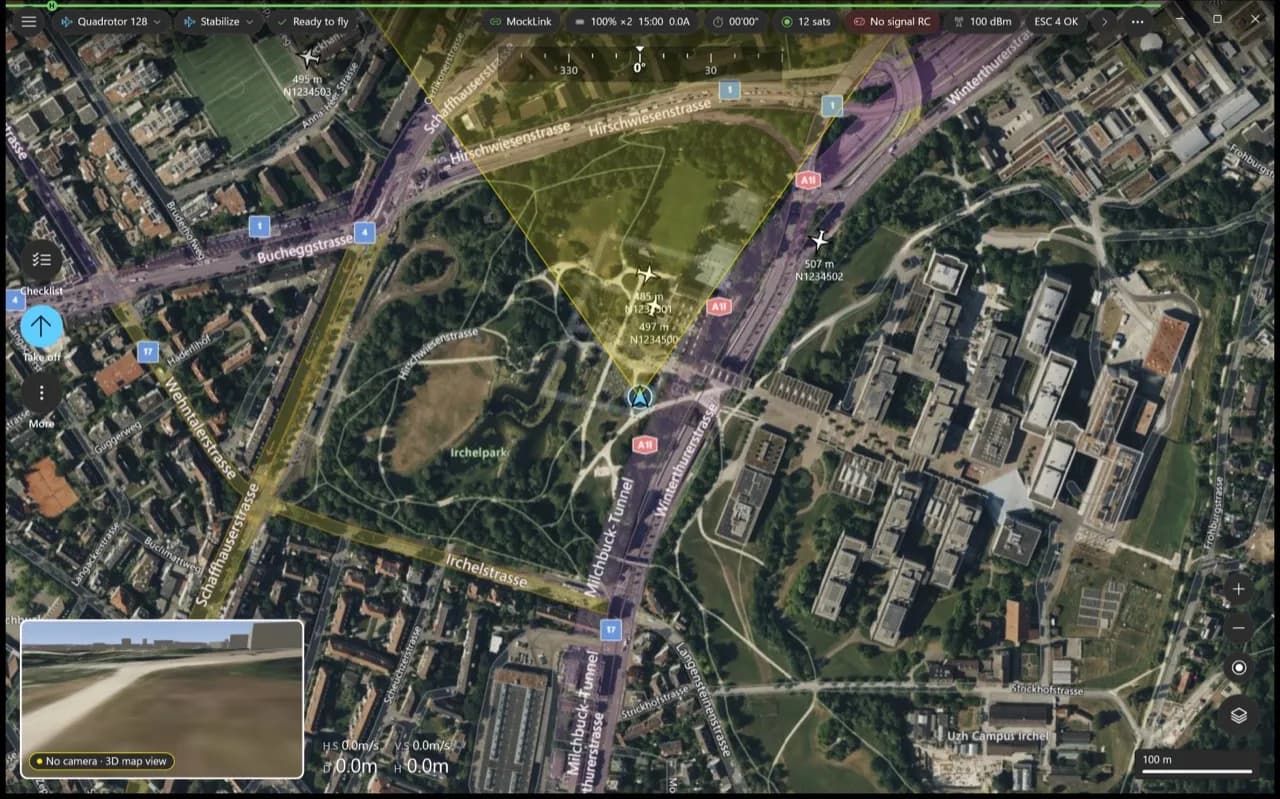
A native Windows app for flying your Aircast drone. It uses Windows' own look and controls, flies with a DJI-style Fly view, and runs the same flight core as the Aircast Android app. For Windows 10 and 11 on ARM64 and x64 PCs.
Download
Latest beta: v5.6.5-beta.10. Each button downloads the file directly.
Which one? A Snapdragon or Copilot+ PC takes ARM64. An Intel or AMD PC takes x64. Not sure? Open Settings → System → About and read System type.
Install
A build comes as an installer (.exe), a portable zip that runs without installing, or both. Use the installer when there is one.
Run the installer
Double-click the -setup.exe you downloaded and follow its steps.
Get past SmartScreen
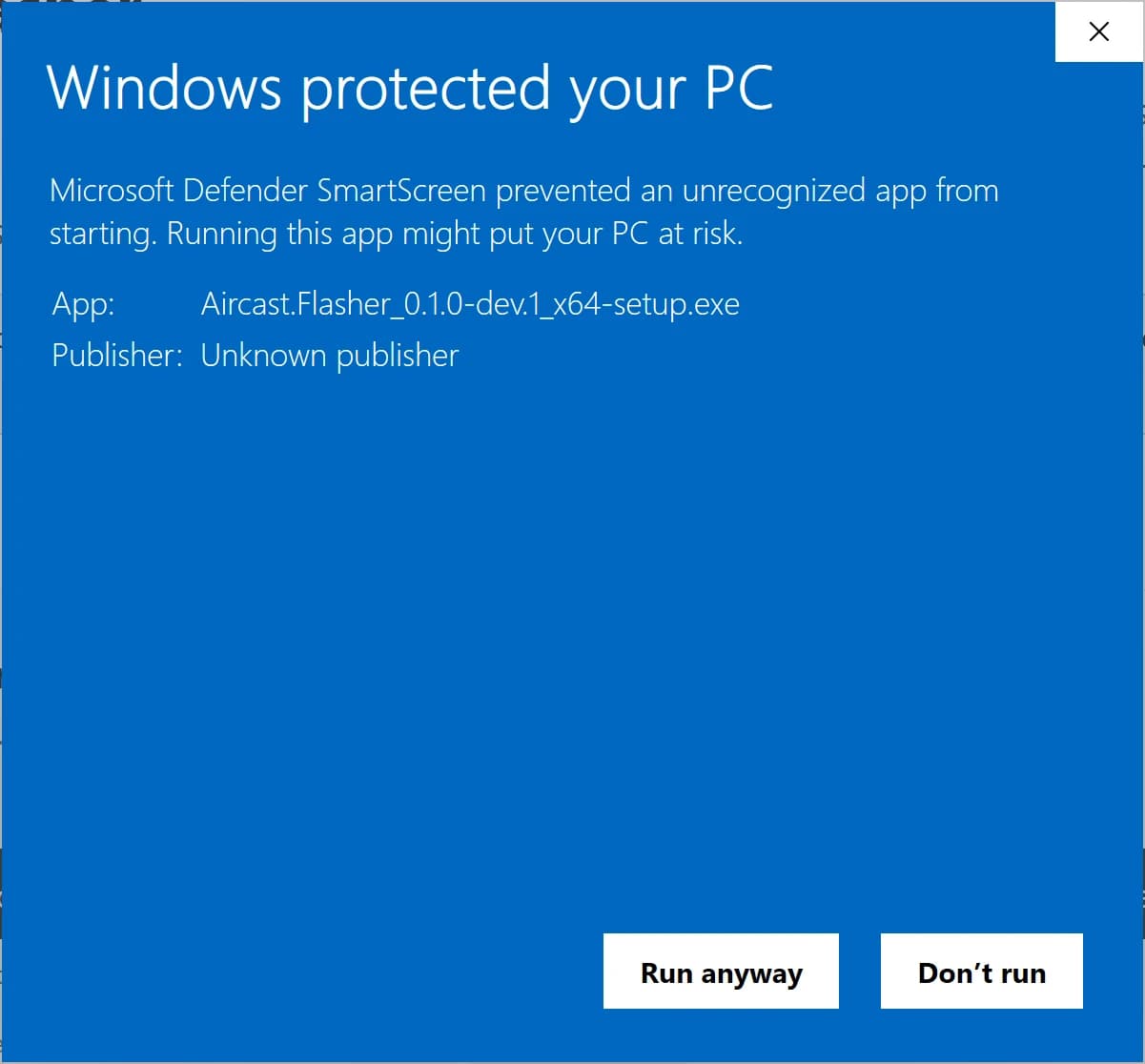
The app isn't code-signed yet, so the first time you run it Windows shows Windows protected your PC:
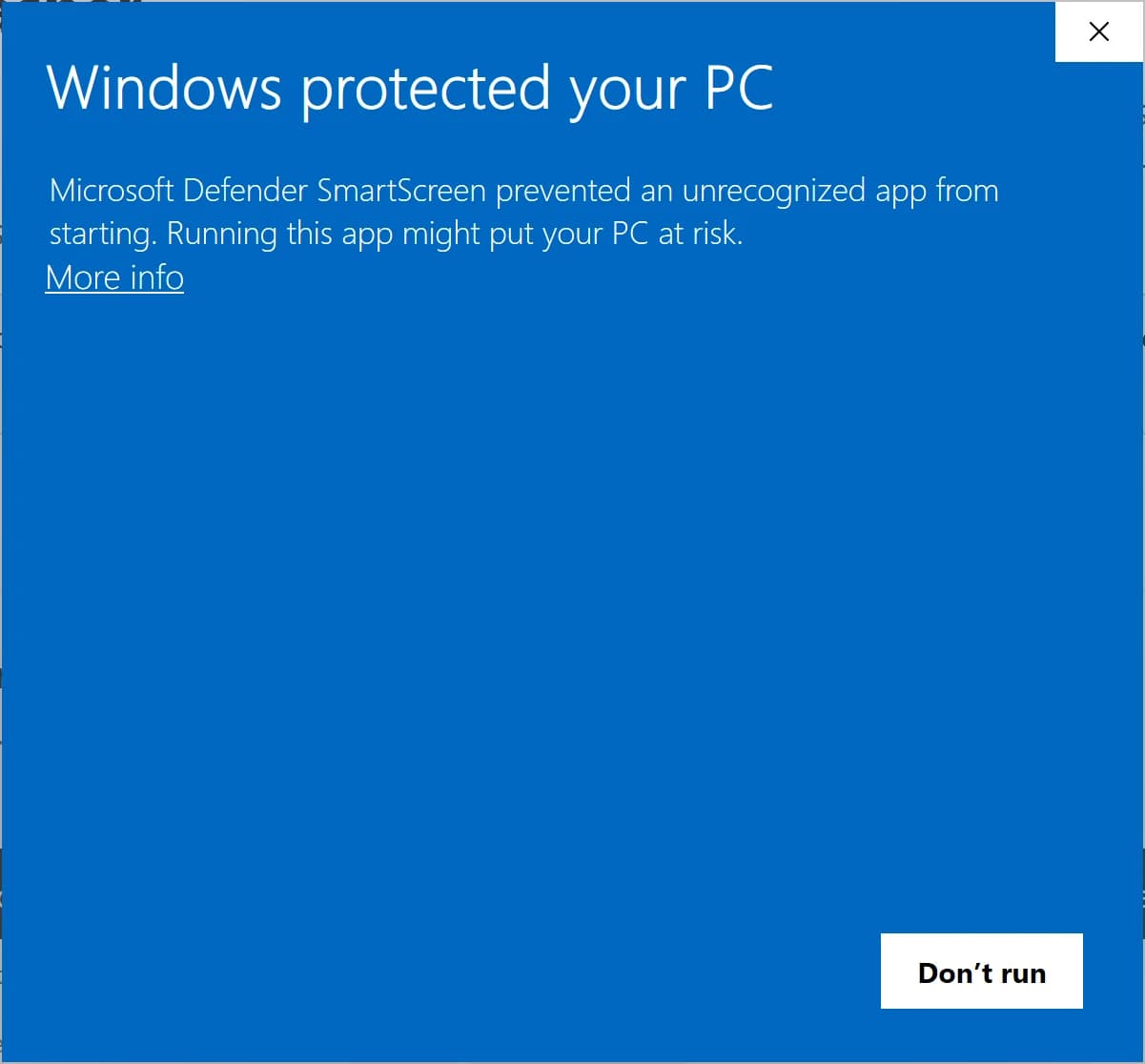
Click More info, then Run anyway.
Portable zip instead
Right-click the zip, choose Extract All, and put the folder anywhere, such as Documents. Open it and double-click AircastQGC.exe. SmartScreen shows the same warning the first time: More info, then Run anyway. Nothing is installed, so deleting the folder removes the app.
What's in it
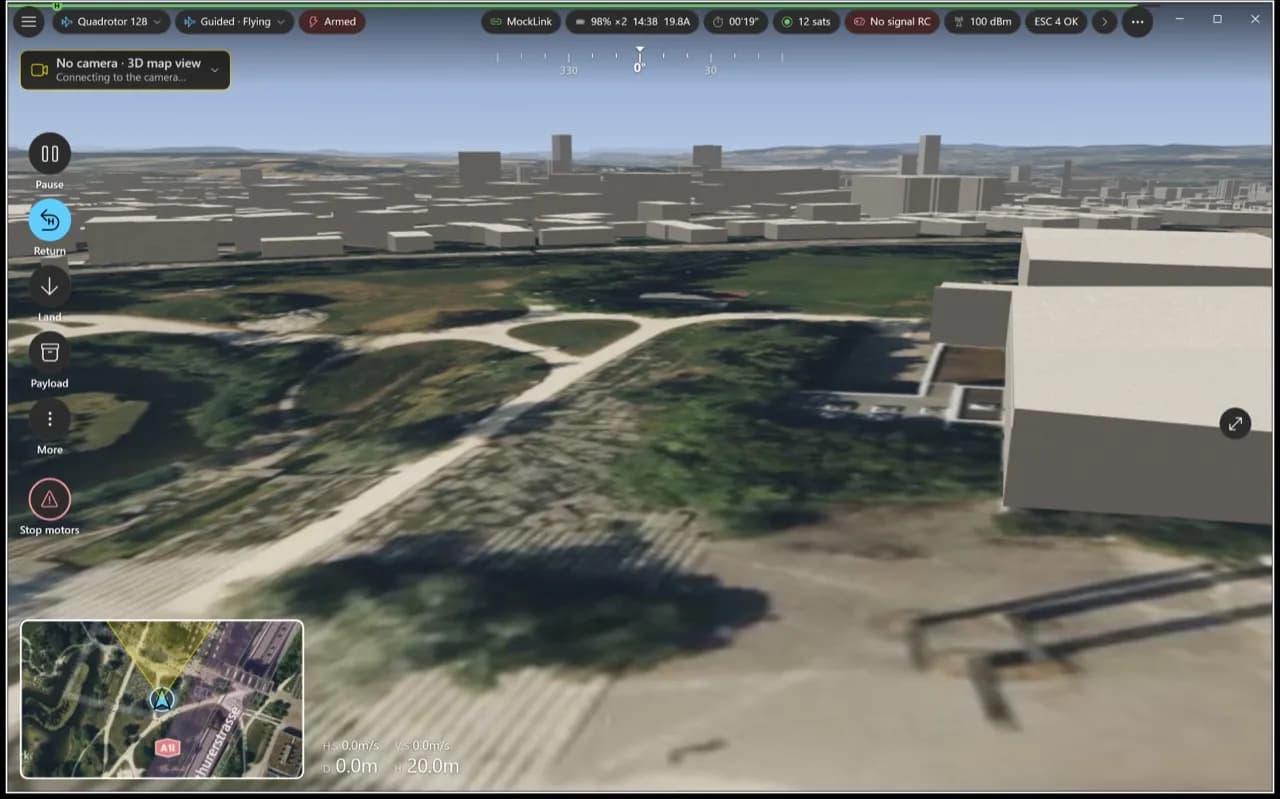
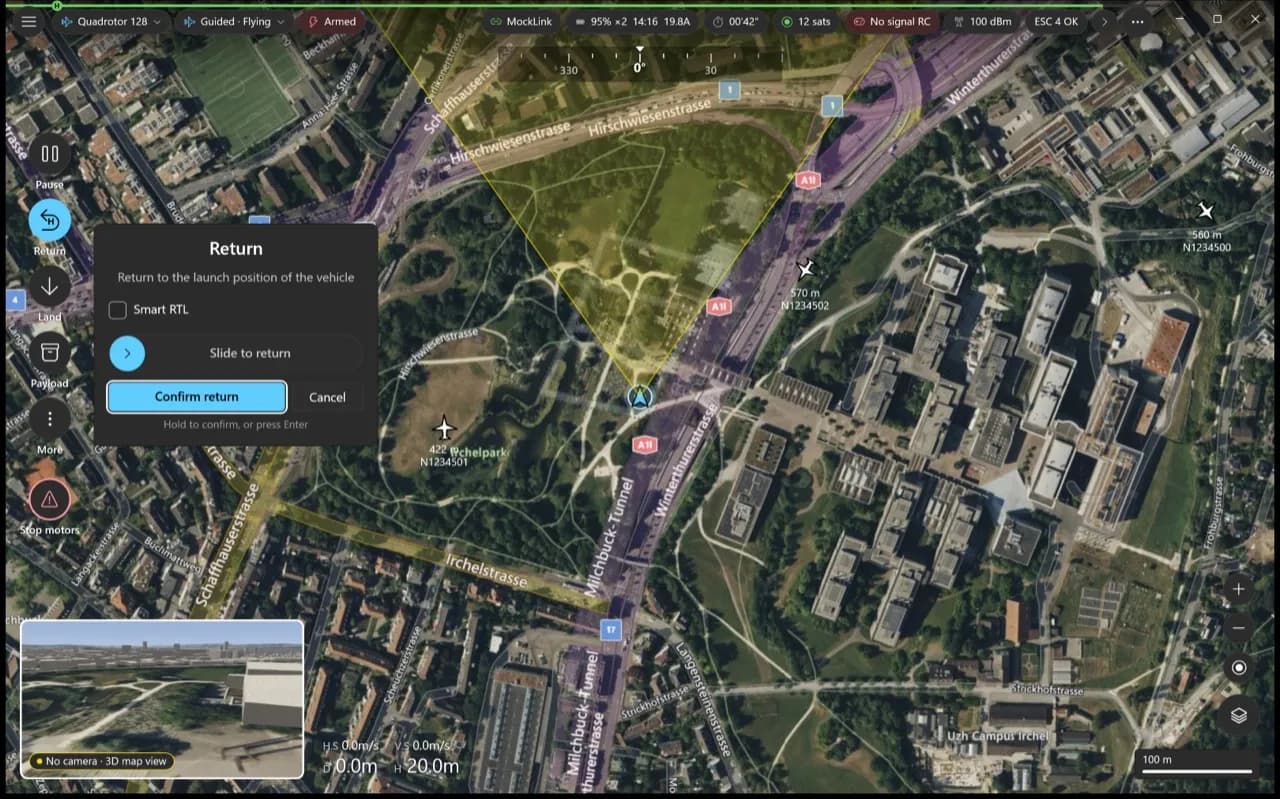
- Fly view. Take off, return, land and pause sit on a rail at the left edge. Actions like Return ask you to confirm first.
- Picture-in-picture. Video and map share the screen: one fills it, the other sits in a corner, and you can swap them.
- 3D view. The map shows buildings in 3D, with your mission route drawn over them.
- Plan. Waypoint missions and surveys that cover an area for you.
- Vehicle setup. Calibrate sensors, set flight modes and failsafes, and edit parameters.
- Analyze. Download flight logs from the drone.
- Aircast card. Write Aircast to an SD card for your drone, with its name and Wi-Fi set.
- Several vehicles. Connect more than one drone and pick which one you fly.
Writing an Aircast card
Settings → Aircast card writes Aircast to an SD card for your drone. Give the drone a name and your Wi-Fi, and it joins your network on first boot.
AircastQGC.exe in the portable folder, and choose Run as administrator before you write a card. Everything else works without it.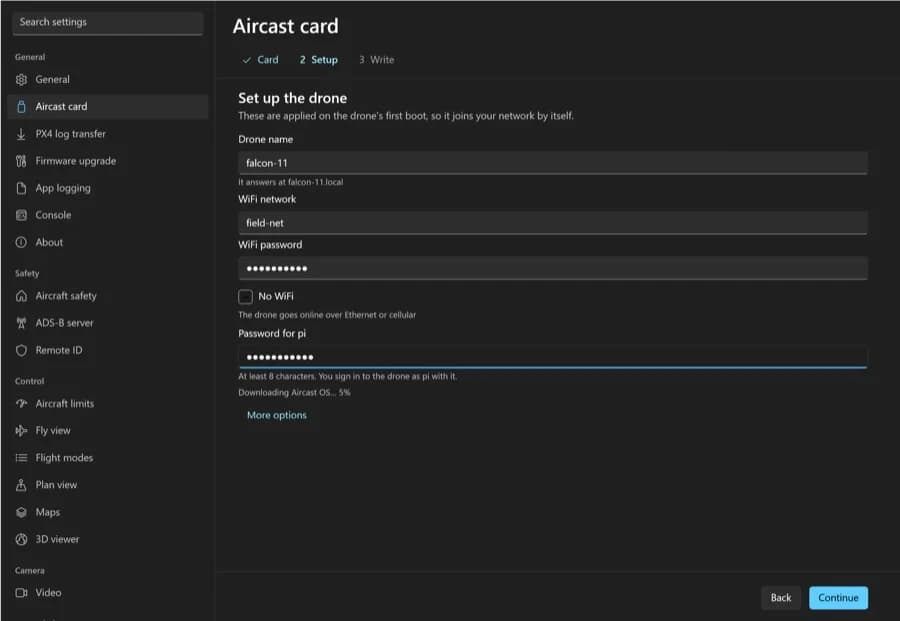
Not on Windows? The Aircast Flasher writes the same card on macOS and Linux.
Flash your Pi in about 5 minutes
The Aircast Flasher downloads the image, sets Wi-Fi and hostname, and verifies the card.
On This Page