On this page
Aircast Flasher
Writes Aircast to an SD card in four steps. The Flasher downloads the latest image, sets your Wi-Fi and hostname so the device connects on first boot, then writes the card and verifies it.
Download
Opening it the first time
The first time you open the Flasher on a Mac, you'll probably see this:
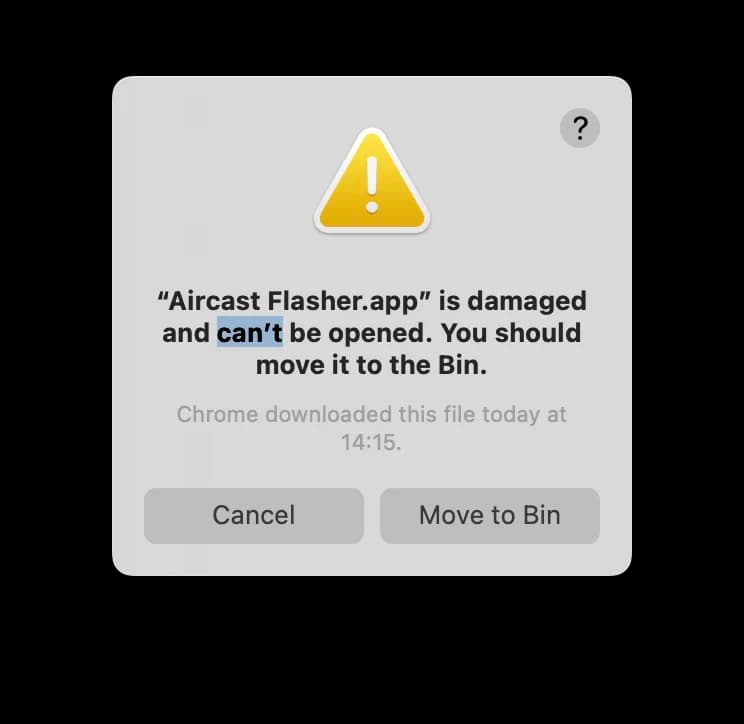
Why it happens: macOS quarantines anything downloaded from the internet and won't open an app unless it's been notarized by Apple, a paid step where Apple scans and approves the developer's build. The Aircast Flasher is a free, open pre-release that isn't notarized yet, so macOS shows the generic is damaged message instead of letting it run. Apple Silicon Macs are especially strict about this.
The fix: after dragging the app into Applications, clear the quarantine flag once in Terminal, then open the app normally:
xattr -dr com.apple.quarantine "/Applications/Aircast Flasher.app"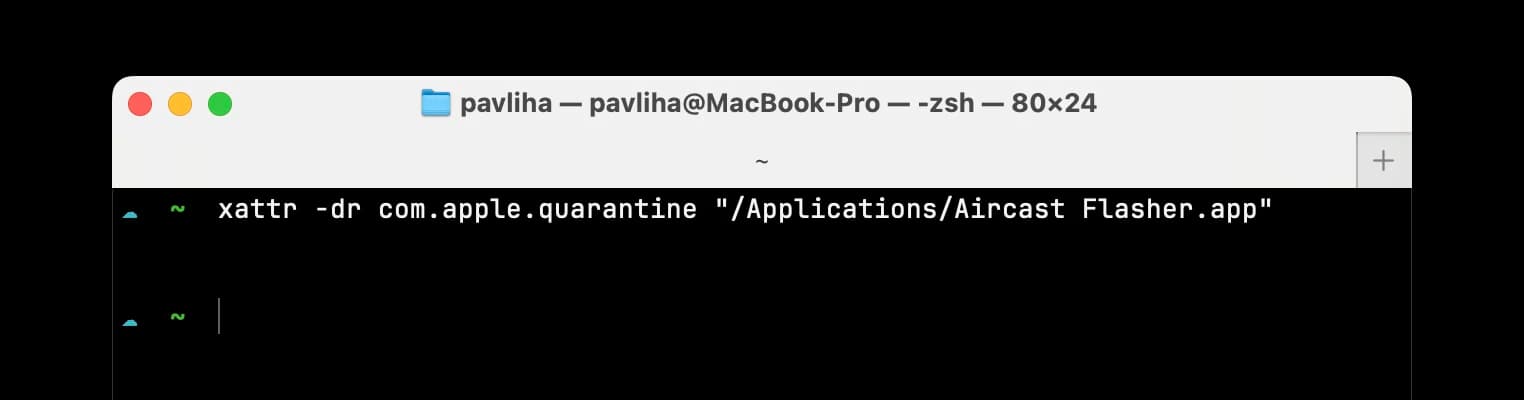
It runs silently, so no output means it worked. Now open Aircast Flasher from Applications.
Right-clicking the app and choosing Open (or Open Anyway under Privacy & Security) usually won't clear the damaged state on Apple Silicon. The command above is the reliable path.
On Windows you'll likely see a blue Windows protected your PC screen the first time you run the installer:
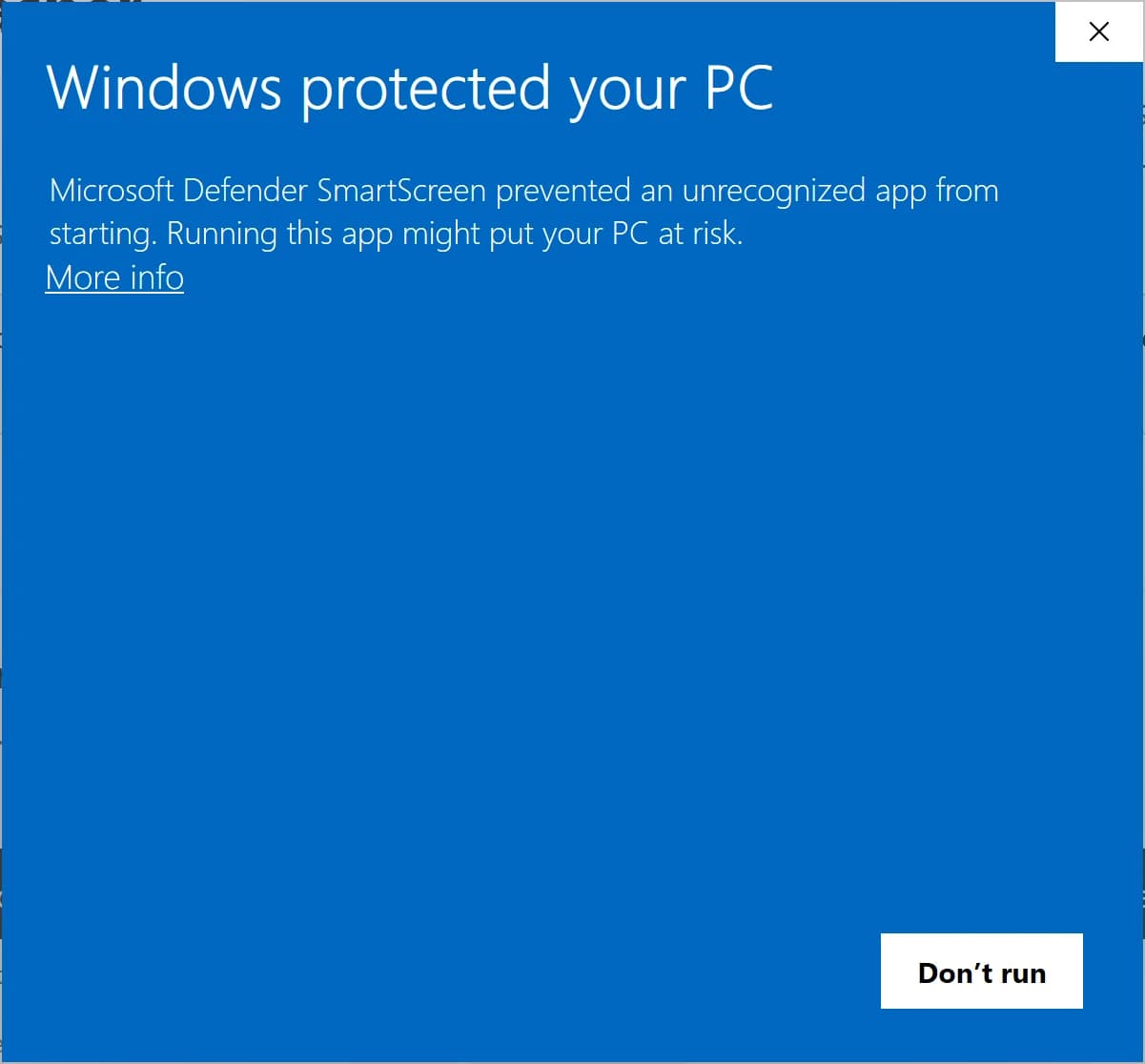
Why it happens: SmartScreen warns about any app it hasn't seen from a known publisher. Earning that reputation requires a paid code-signing certificate and enough downloads for Microsoft to build trust. The Aircast Flasher is a free, open pre-release that isn't code-signed yet, so it shows up as an unrecognized app from an unknown publisher.
The fix: click More info, confirm the app is Aircast.Flasher, then click Run anyway:
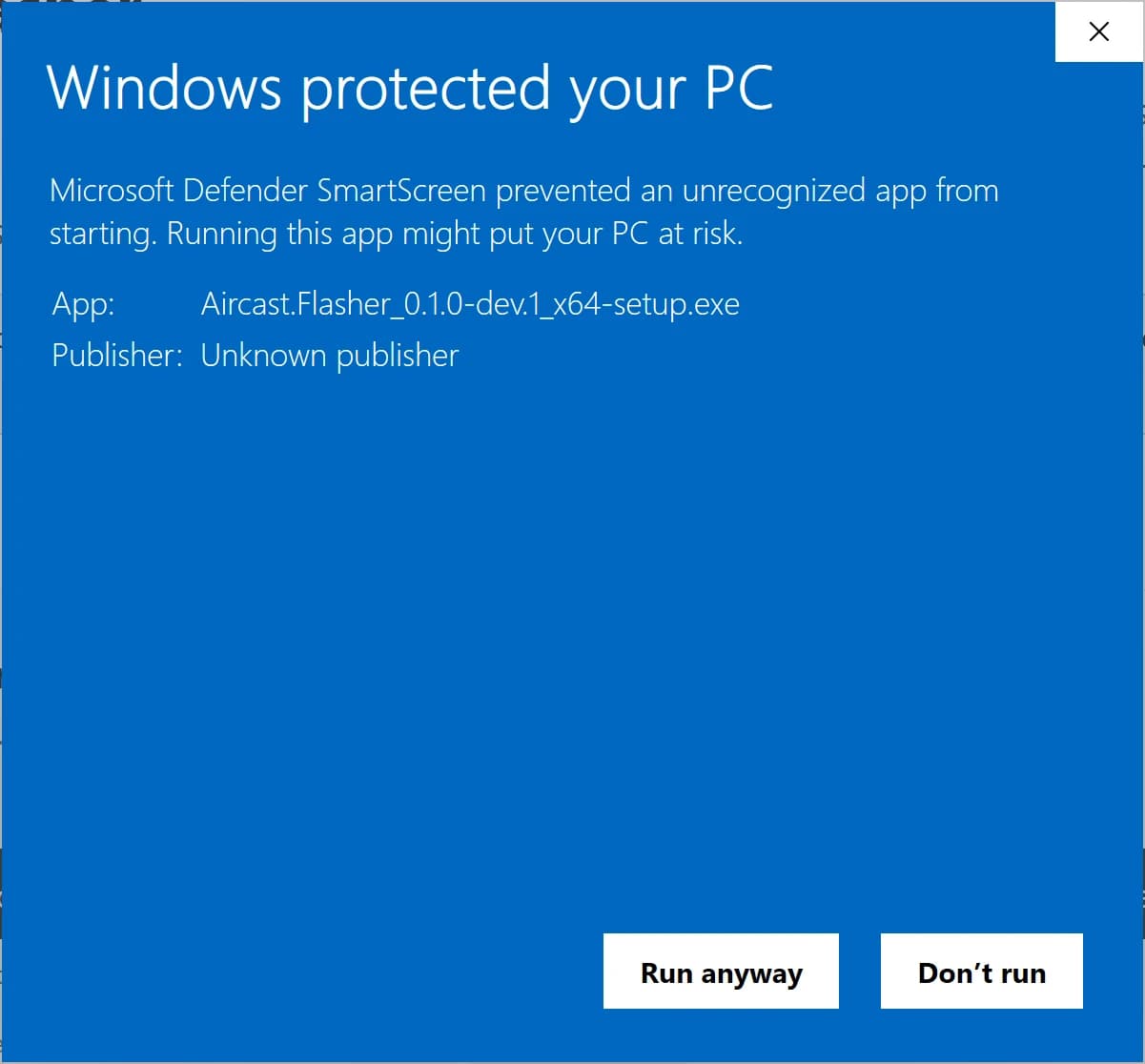
The installer then runs as normal.
Linux doesn't gate unsigned apps, so there are no warnings to click through. Make the AppImage executable and run it:
chmod +x Aircast.Flasher*.AppImage && ./Aircast.Flasher*.AppImageThe .deb installs with your package manager as usual.
What it does
- Fetches the image. Pulls the latest Aircast release, or writes a local
.img/.xz. - Pre-configures first boot. Writes your Wi-Fi SSID, password and a hostname, so the device joins your network and is reachable at
<hostname>.localwithout SSH. - Writes and verifies. Decompresses, writes, and checks the card so you know it is good before you boot.
Advanced: write the card yourself
Most people should use the Flasher above. If you would rather write the card with Raspberry Pi Imager or dd, download the image directly. You lose the Wi-Fi and hostname pre-fill, so the device joins over Ethernet on first boot and you set Wi-Fi from the dashboard.
The Flasher and the image are versioned separately, so the numbers are not meant to match. You only need one of the two downloads on this page.
Aircast OS image
Version v0.3.5 • Stable version
Raspberry Pi Image
Compatible with: Raspberry Pi 3, 4, 5, and Zero 2 W (64-bit ARM)
On This Page