On this page
Get Started
Aircast is a Raspberry Pi image with cellular uplink, video streaming, MAVLink telemetry, and a web dashboard already installed and wired together. Flash it with the Aircast Flasher, power on, and open the dashboard in a browser. Setup happens in that browser, not over SSH.
Have the hardware?
A Pi, a card, a 4G modem and a camera within reach. Skip straight to writing the card.
Yes, flash itNot yet?
The starter kit lists every part with buy links, $120 to $180 all in, and how it wires together.
See the starter kitWhat you need
Raspberry Pi
3, 4, 5, or Zero 2 W
microSD card
16 GB or larger, plus a card reader
A computer
macOS, Windows, or Linux. The Flasher is a desktop app, so you cannot do this from a phone
SIM and 4G modem
A data plan for the uplink, seated in a supported modem before first boot
RTSP camera
Anything that serves an RTSP stream. See Tested Cameras
Flight controller
optionalOnly if you want MAVLink telemetry
If you don't have the hardware yet, the Recommended Starter Kit lists what to buy and how to wire it.
- 1Flash the card with the Aircast Flasher5 min
- 2Power on and open the dashboard2 to 3 min
- 3Run the setup wizard on the device5 min
- 4Pick how you watch remotelyvaries
Flash with the Aircast Flasher
The Aircast Flasher downloads the latest image, writes your Wi-Fi credentials and hostname onto the card so the device connects on first boot, then writes the image and verifies it. Download it below and follow along.
First run
Opening it for the first time differs per platform. Screenshots for all three are in Installing the Flasher.
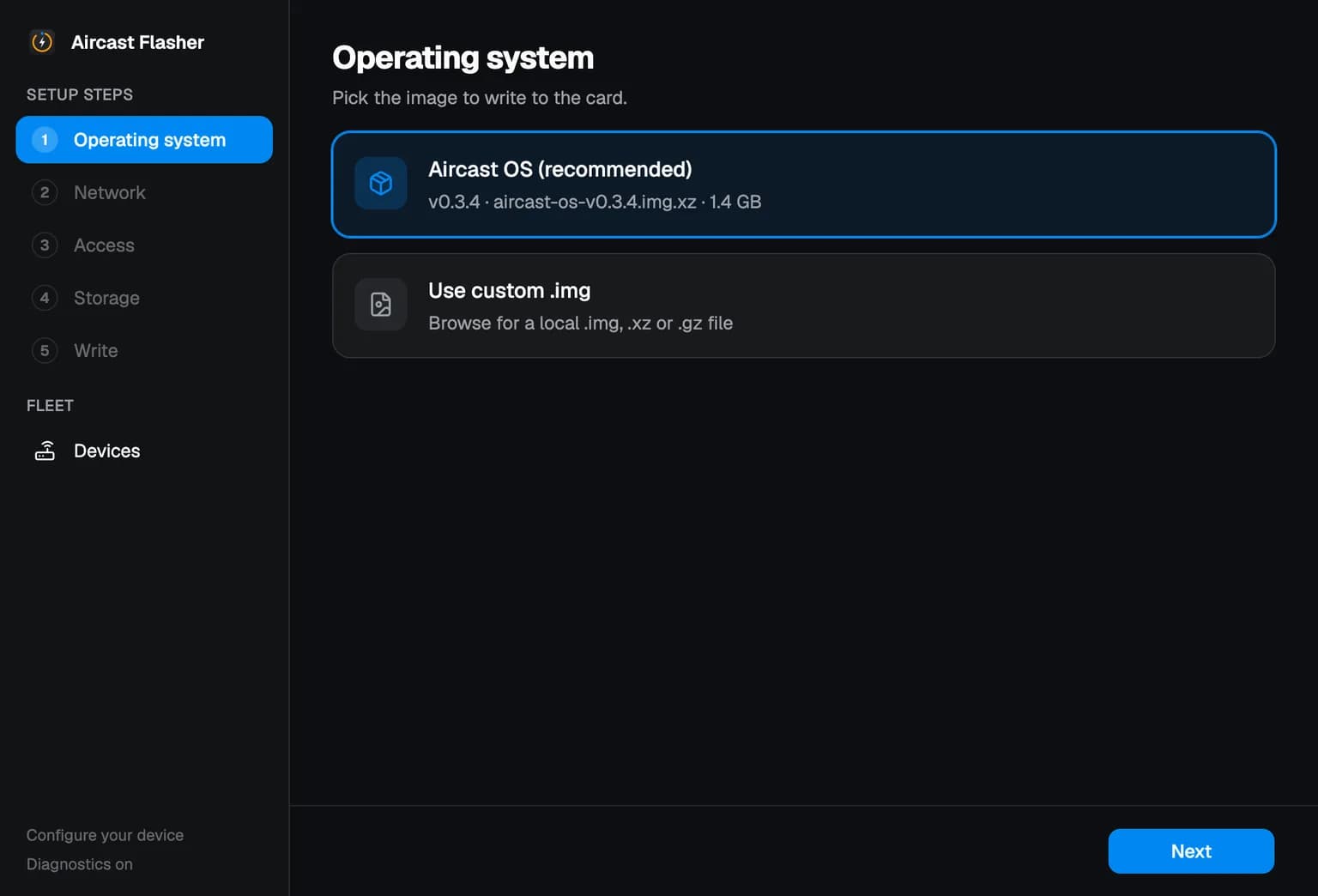
Pick the image
Aircast OS (recommended) is already selected, and the line under it names the exact build it will write. The Flasher fetches it for you, so there is nothing to download by hand and no .img.xz to unpack.
Network and hostname
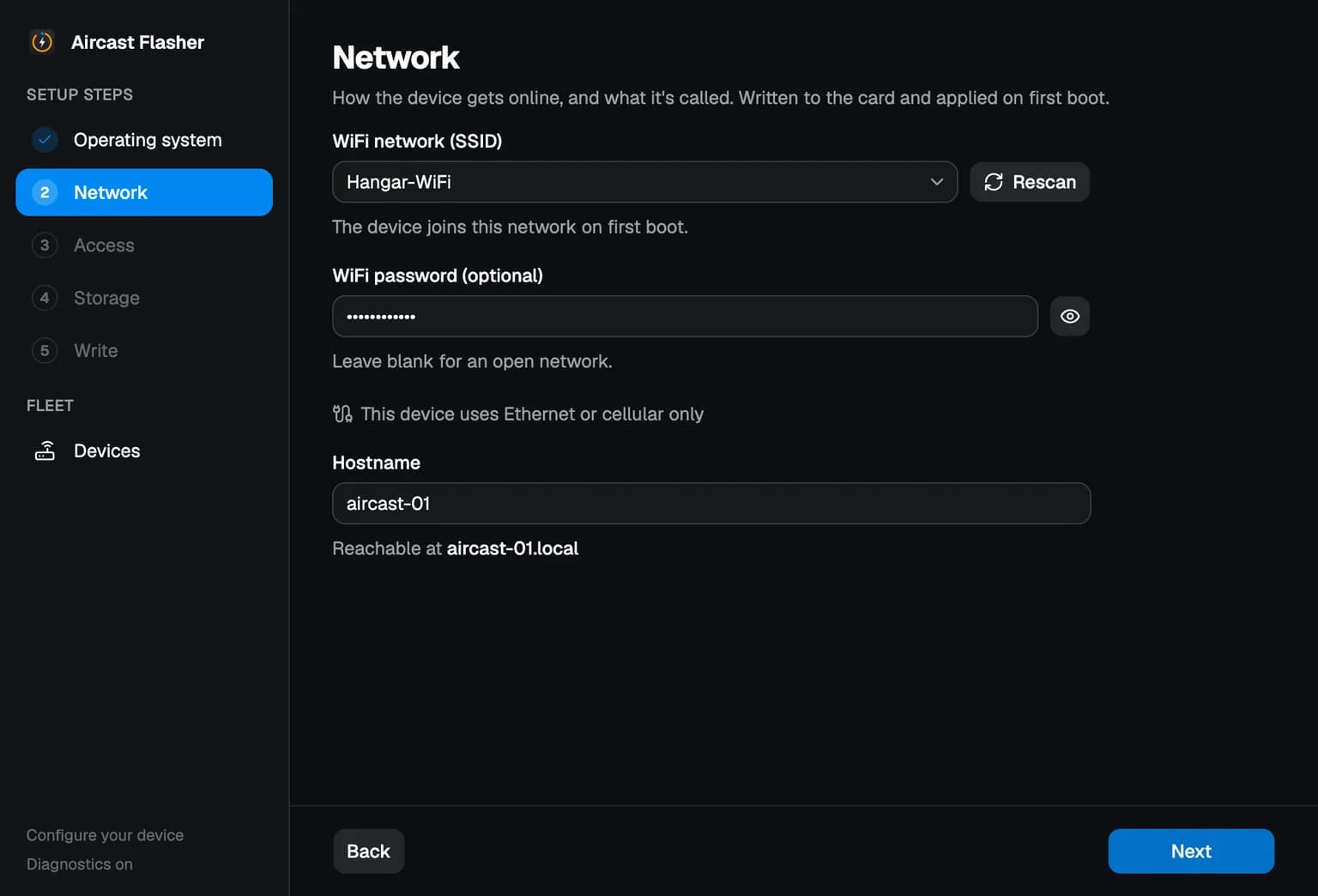
How the device gets online, and what it is called. Pick your Wi-Fi network, enter its password, and give the device a hostname. All three are written to the card, so it joins your network the first time it boots. The hostname is also how you reach it later, as in falcon.local, so pick something you will recognise across a fleet.
Access
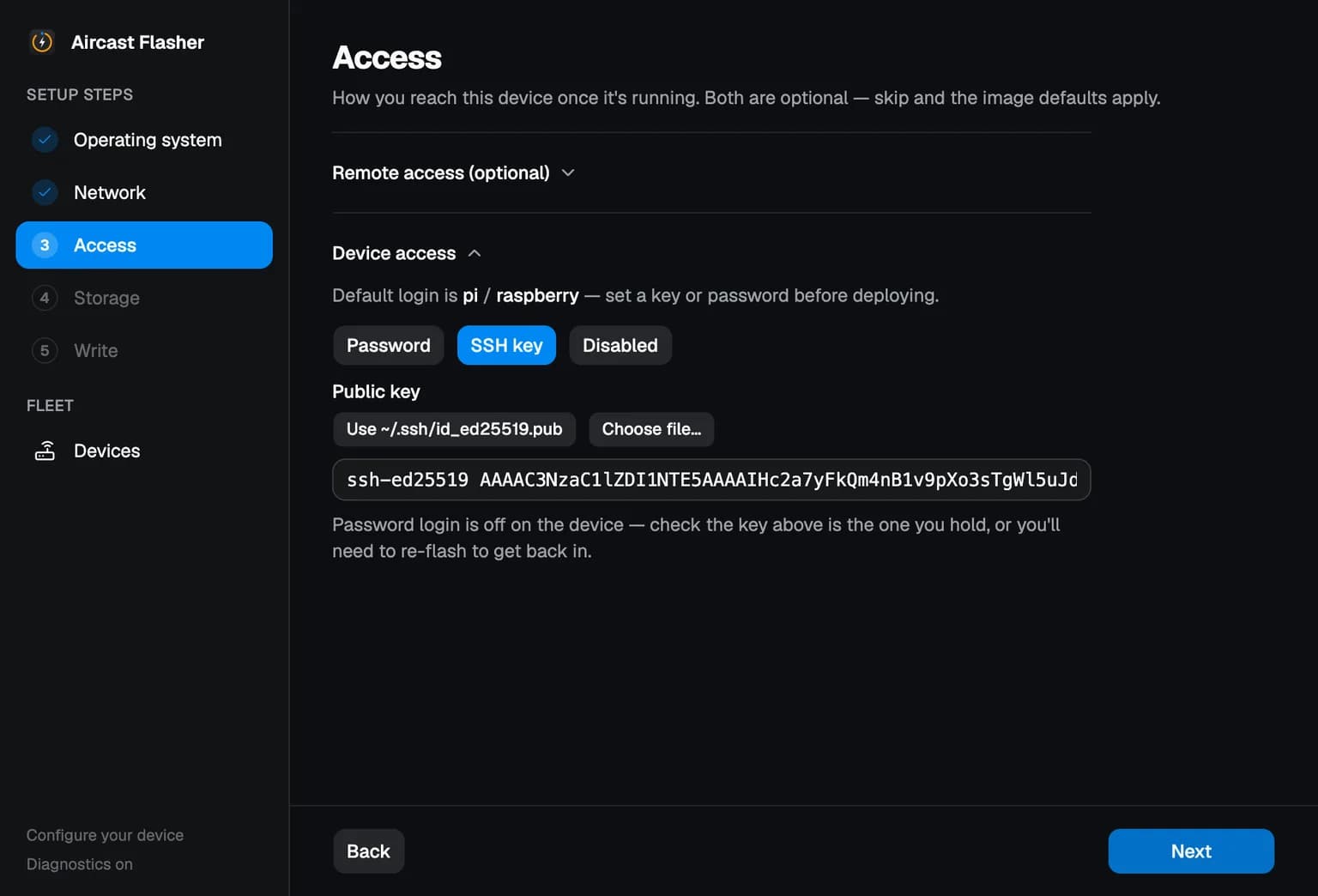
How you reach the device once it is running. Both halves are optional, and skipping them leaves the image defaults in place.
Remote access takes a pre-auth key from your control server. Paste one and the device joins your tailnet by itself on first boot, with nothing to click on the device afterwards. The key is written to the card in plain sight, so use a short-expiry or ephemeral one. Leave it blank and you sign the device in from the dashboard later instead. See Install Tailscale.
Device access replaces the default pi / raspberry login. An SSH key is the safest choice, and the Flasher offers the one already on your machine. Password login is off on the device, so check the key it shows is one you hold: getting this wrong means re-flashing to get back in.
Pick the card
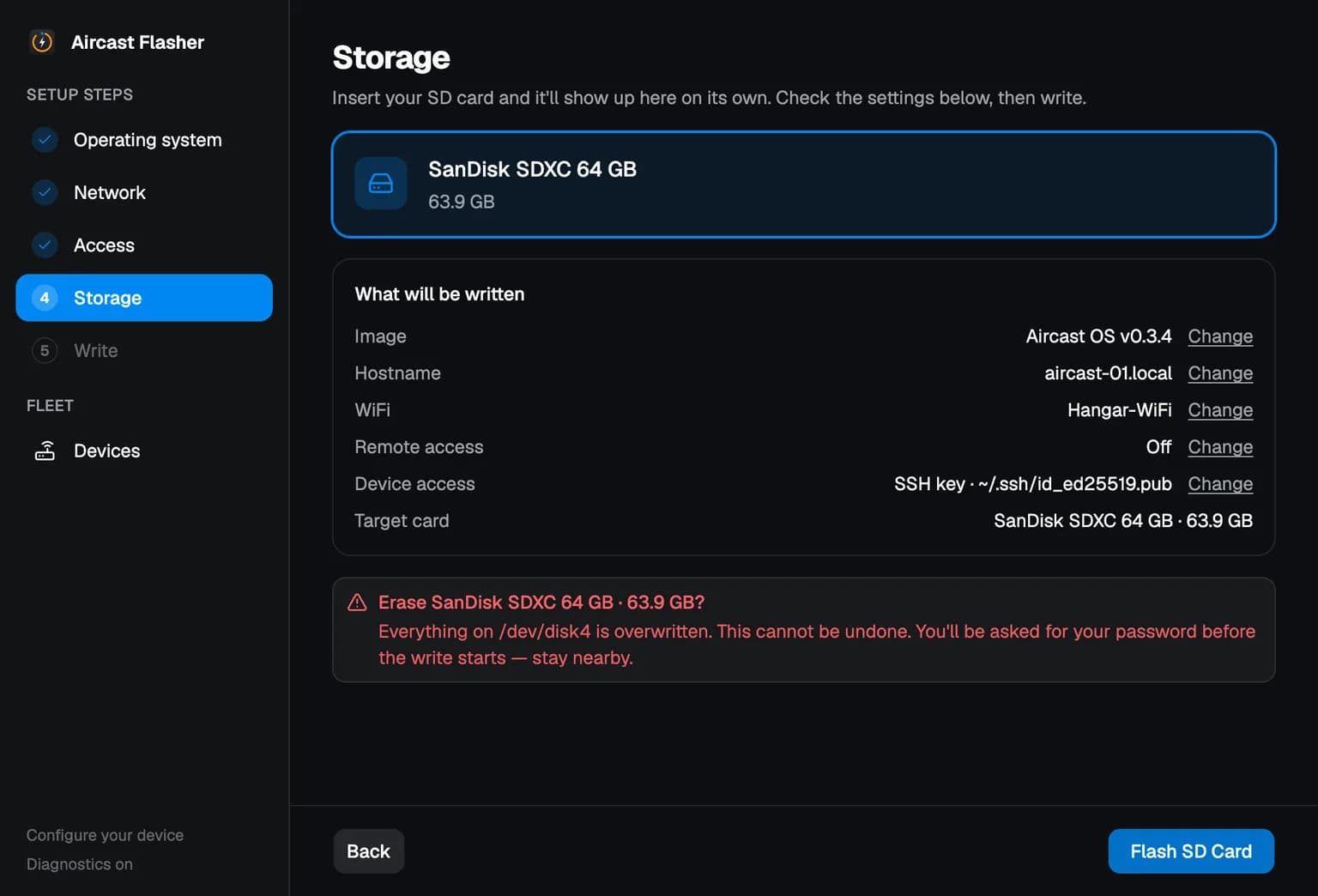
Insert a microSD card (16 GB or larger) and it appears here on its own. This screen also summarises everything about to be written, so read it before continuing: everything on that drive is erased, and this is the one step you cannot undo.
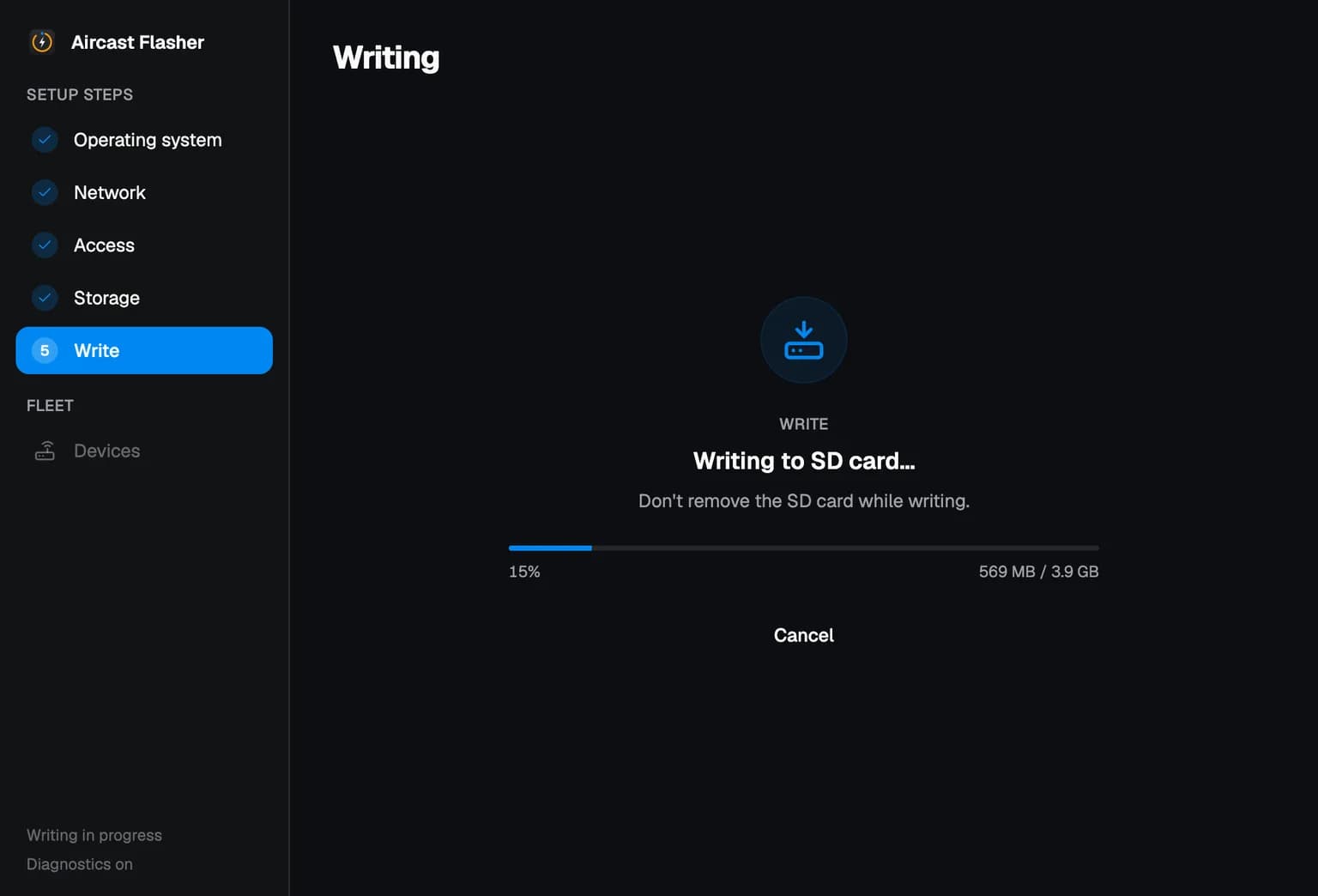
Write and verify
Hit Flash SD Card. The Flasher decompresses the image, writes it, then reads it back to check every byte. Let the verify finish: a card that wrote badly looks exactly like a Pi that will not boot, and the second pass is what tells those apart.
When it finishes, eject the card and slot it into your Pi. If it isn't assembled yet, the wiring guide shows how the camera, modem, and flight controller connect. Once everything is plugged in and the SIM is seated in the modem, power on.
Open the dashboard
The first boot takes two or three minutes while the Pi brings up cellular and joins your network. After that, point a browser at the hostname you set. The device serves the dashboard itself, so there is nothing to install to view it. If you named it falcon:
http://falcon.localOn Windows, .local names often don't resolve. Open the Pi's IP address instead, which you can find in your router's device list, e.g. http://192.168.1.23.
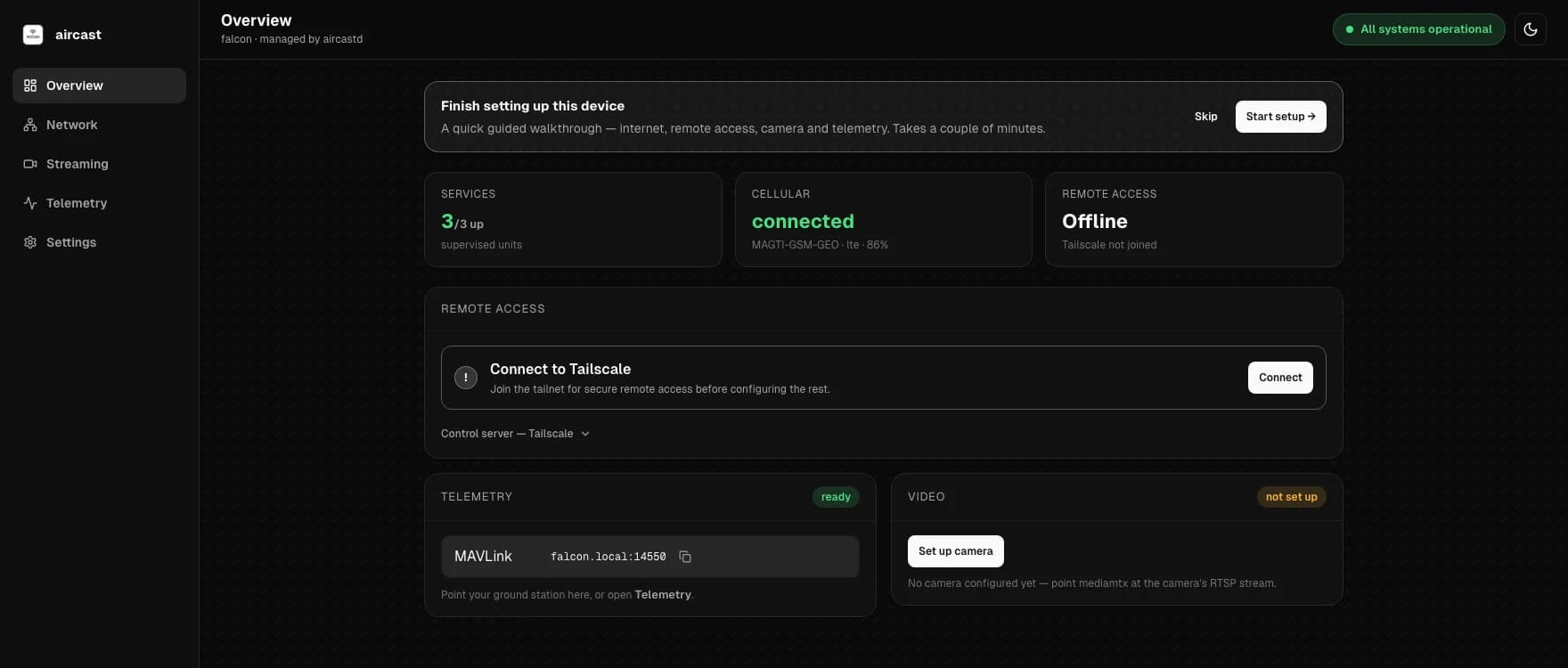
When the device is healthy you'll see the green All systems operational banner at the top of every page. Cellular is already connected, telemetry is ready, and the two things still to do are remote access and the camera.
Finish setting up this device at the top is how you do both. Hit Start setup and follow along below.
raspberry and open http://10.42.0.1. There is more in Device Unreachable.Run the setup wizard
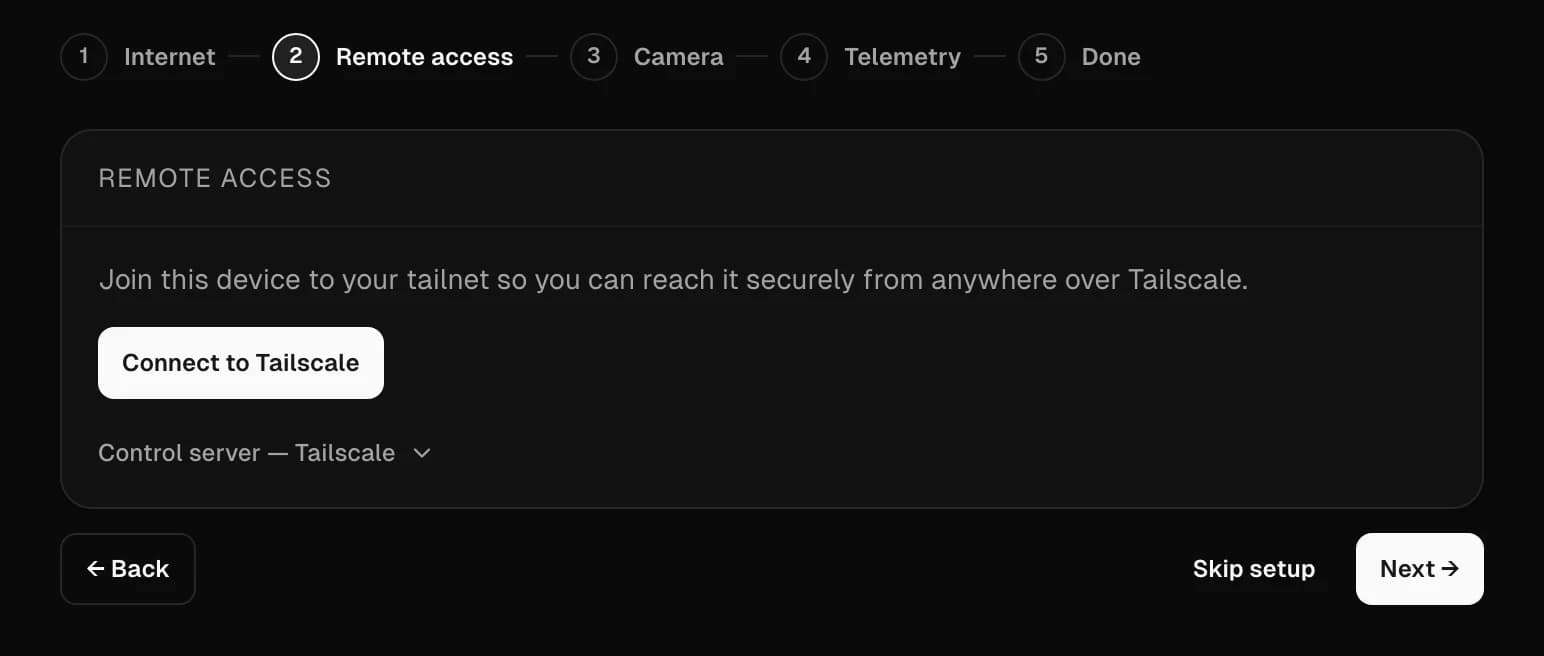
Start setup walks five steps: internet, remote access, camera, telemetry, and a summary. It writes real configuration as you go, so this is the fastest way from a fresh card to a working device. You can leave at any point with Skip setup. The same settings live on the dashboard afterwards: Wi-Fi on Network, the camera on Streaming, and remote access on the Overview page.
Connect to the internet
Cellular usually connects on its own, so if you seated the SIM before boot there is nothing to do here. If you would rather the device used Wi-Fi, join a network on this step. Either way, Next moves on.
Join your tailnet
Hit Connect to Tailscale. This puts the device on your own private network, so the dashboard, telemetry and video are all reachable from anywhere without port forwarding or a public IP. If you only want to watch video remotely, the Aircast cloud route covers that without a tailnet.
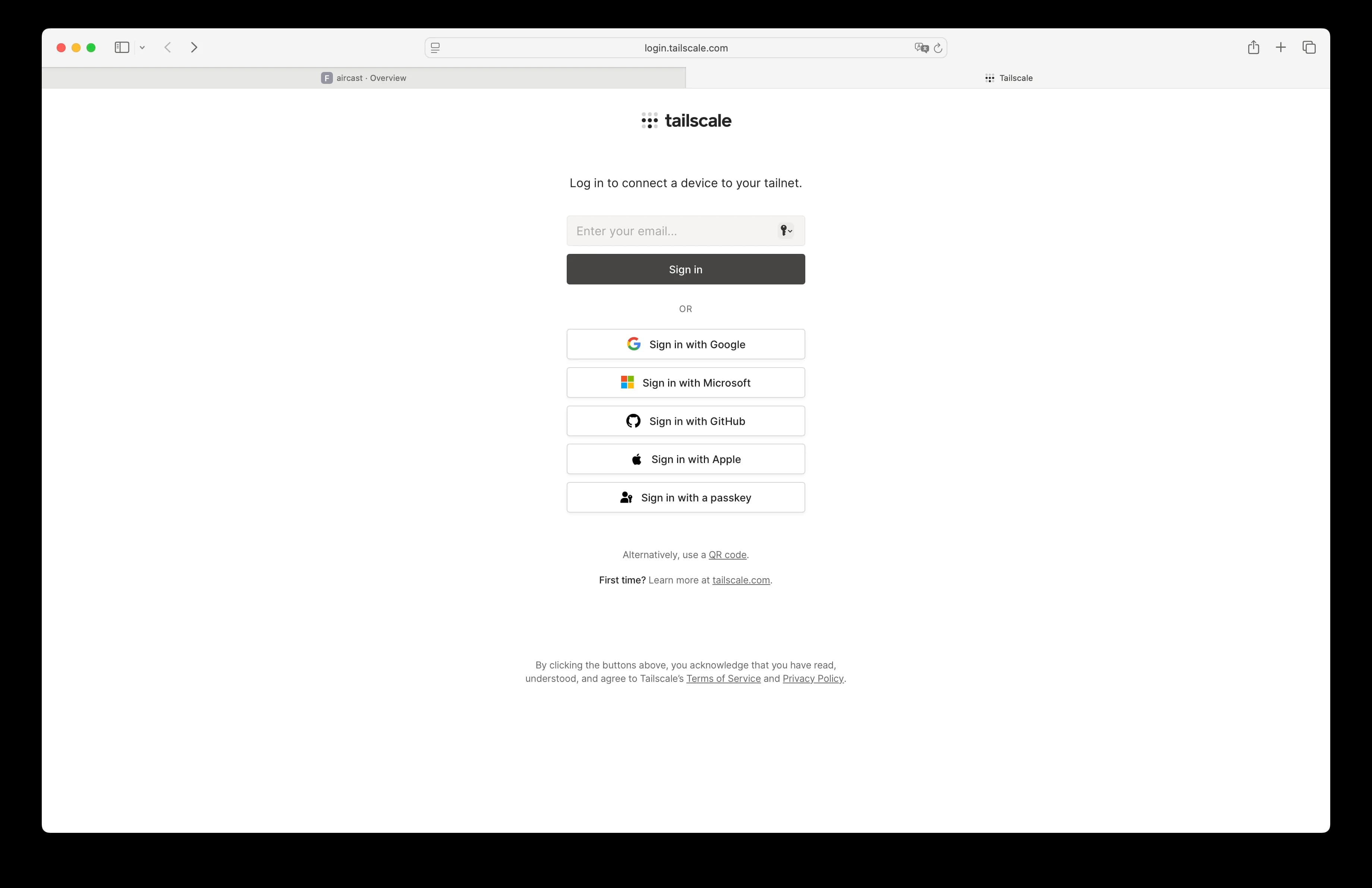
A Tailscale login page opens. Sign in, creating a free account if you don't have one, then approve the device. The step switches to connected by itself.
Point it at your camera
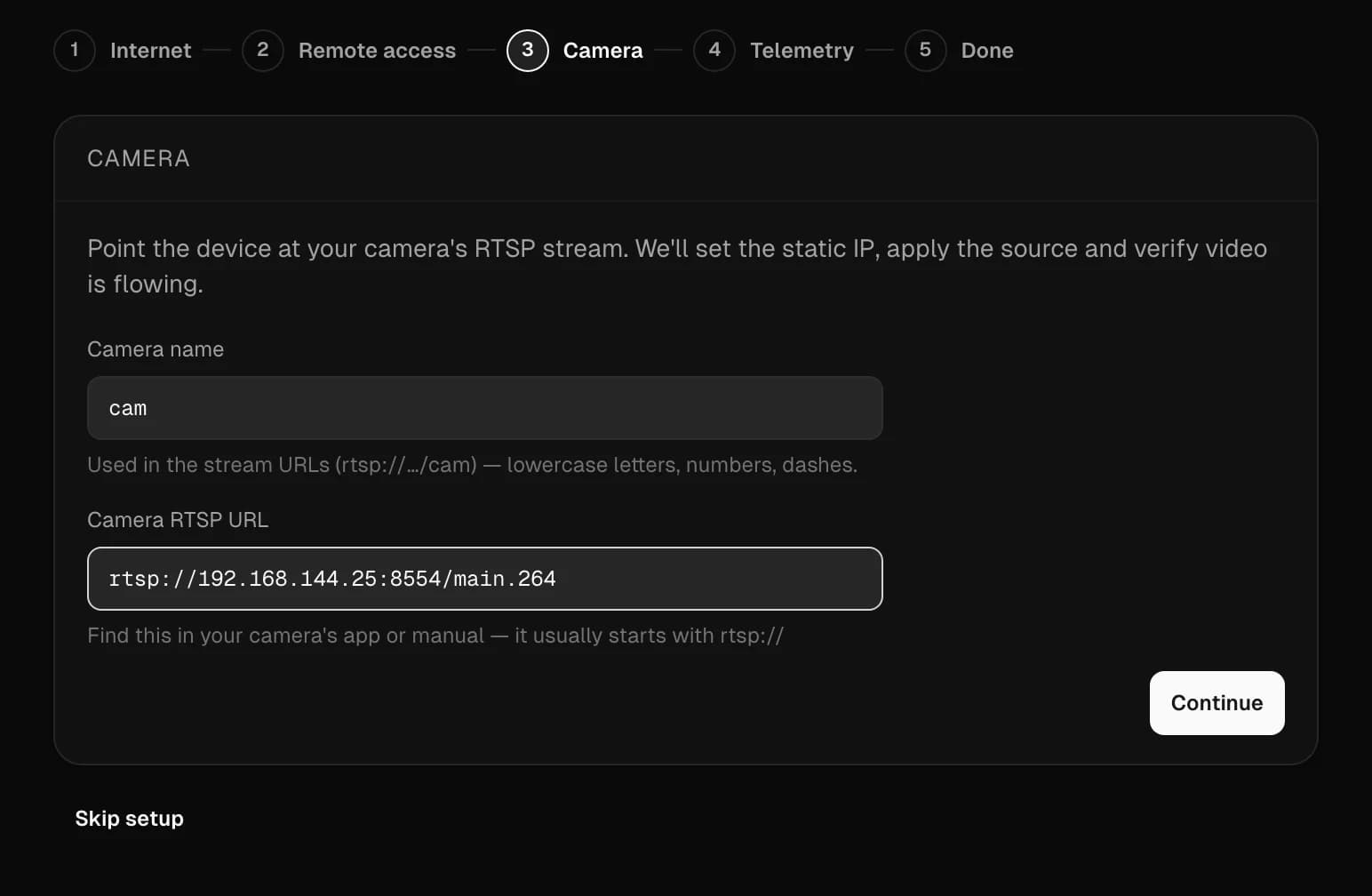
This step runs in three parts: find the camera, tell it which port the camera is plugged into, then check the picture.
Scan for cameras checks the RTSP ports on every reachable address, then asks over ARP, which finds cameras still on the subnet they shipped with, even when the device has no address there yet. A camera the scan can't see needs its address typed in. It's in the camera's app or manual, or on the Tested Cameras page. For a SIYI camera on its default address, that's:
rtsp://192.168.144.25:8554/main.264The Camera name below it becomes part of the stream URLs, so keep it to lowercase letters, numbers and dashes. Then pick the Ethernet port the camera's cable is in. Each port shows its own address, and the camera has to be on that same subnet to be reachable. The address you typed tells the wizard which network that is, so it offers the port a fixed address on it and prints the exact change before making it.
Set up & verify applies the source and then checks video is actually arriving. A wrong address fails here, on the bench, rather than in flight. Change settings goes back to the address, and Start over restarts the step.
Check telemetry
Nothing to fill in. MAVLink is detected from the flight controller's serial port, so connect the autopilot and power it on, and the UDP endpoint appears on this step. That address is what your ground station points at. Skip it if you aren't flying a flight controller.
Finish
The last step lists what is set up and what isn't, and every row jumps back to its step. Anything you skipped is still available from the dashboard afterwards.
Pick how you'll watch remotely
Video already works on your own network. Two routes take it outside, and they cost different things:
- Aircast cloud, the quicker one. Publish the camera in one click and share a revocable browser link. Whoever watches installs nothing. Watch from anywhere has the click path. If that is all you need, you are done here.
- Your tailnet, the private one. Video never touches the Aircast cloud, and the dashboard and telemetry come with it, but every device you watch from has to run Tailscale and be signed in. Carry on below.
Get your laptop on the tailnet
Wizard step 2 put the device on your tailnet; if you skipped it, run it now from Overview. A tailnet only links machines that are both signed in to it, so the laptop or phone you'll watch from has to join as well.
Install Tailscale on your computer or phone
Install Tailscale has the click path for iPhone, Android, macOS, Windows, and Linux. Sign in with the same account you used to approve the device in the wizard, and make sure Tailscale is toggled on. Now your computer or phone and the device are on the same private network.
Find your device's address
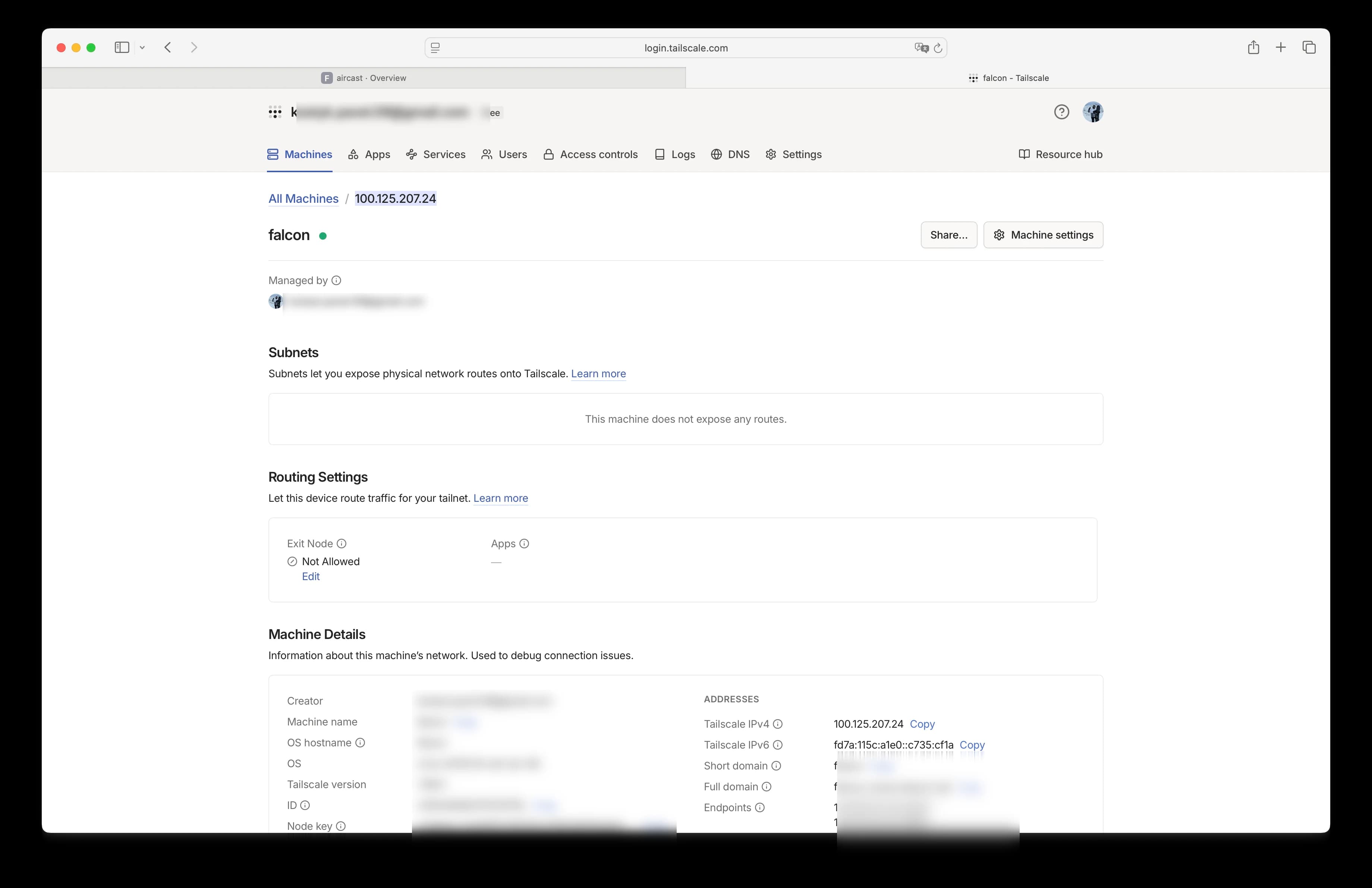
Open the Tailscale admin console → Machines → your device. Its Tailscale IPv4, a 100.x.x.x address, is listed under Addresses. Use that IP, or the <hostname>.<tailnet>.ts.net name, to reach the dashboard, video, and telemetry from anywhere. You don't need port forwarding or a public IP.
You're set up
This is what a finished device looks like: video live, telemetry ready, and cellular up.
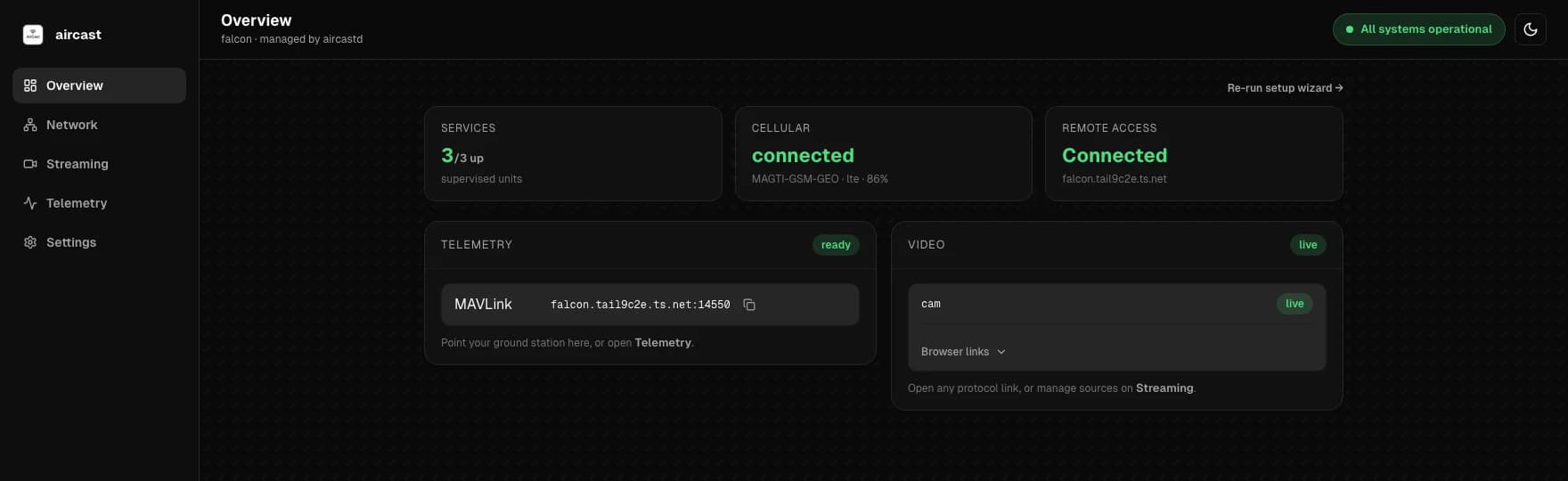
To watch the stream, open Streaming and expand Manage next to the camera. Watch live opens it in the browser, and the RTSP, WHEP, and HLS links next to it paste into your own viewer. Those links carry whatever address currently reaches the device, so they work from anywhere once it is on your tailnet.
From here:
- Watch from Anywhere: publish the camera to the Aircast cloud and share a browser link
- The Dashboard: what each page does
- Connect a Ground Station: MAVLink telemetry in QGroundControl or Mission Planner
On This Page