On this page
Aircast QGC
Aircast QGC is the standard ArduPilot/PX4 QGroundControl with a single feature added: support for multiple video streams. Add any number of your Aircast cameras and watch them in the flight view, switching between them or showing them all at once as picture-in-picture, each delivered over Aircast's low-latency WebRTC (WHEP) path, right next to your map, telemetry and mission tools. Everything else is stock QGroundControl.
Aircast QGC is open source: browse the code on GitHub or grab a build from Releases.
Download
Latest build: v5.5.5. Each button downloads the file directly. Development builds are Apple Silicon and arm64 Android; stable releases also cover Intel Macs and 32-bit (armv7) Android.
xattr -dr com.apple.quarantine /Applications/QGroundControl.appSet up WebRTC video
Open Application Settings → Video. In the Cameras list, open Camera 1, set its Source to WebRTC (WHEP) Video Stream, and paste your WHEP endpoint into the URL field. Save, and the camera plays in the flight view.
The URL is any WHEP endpoint that serves your camera. The Aircast SFU exposes one per device:
https://sfu.aircast.one/api/v1/whep/<device-id>Any WHEP server works: the SFU, or a MediaMTX instance on the device itself. Plain http(s):// URLs go in directly, no scheme rewriting. The stream must be H.264 (payload 96) or H.265 (payload 97); audio is not negotiated.
Tune for latency
Below the camera list, the Settings section has controls that trade latency against resilience:
- Low Latency Mode: shrinks the WebRTC jitter buffer to ~40 ms and renders each frame as it arrives. Best on a direct or low-jitter link (LAN, or a short path to the SFU). Turn it off on a lossy or relayed link, where the ~200 ms buffer gives packet recovery room to keep the picture clean.
- Video decode priority: leave on Default for hardware decoding. On macOS, “Force software decoder” can actually be lower latency for H.265, because the platform hardware decoder buffers extra frames.
- Connection Timeout: how long to wait for the stream before restarting. Keep it at 15 s or more; WebRTC signaling and ICE need a few seconds on a fresh connection.
Multiple cameras
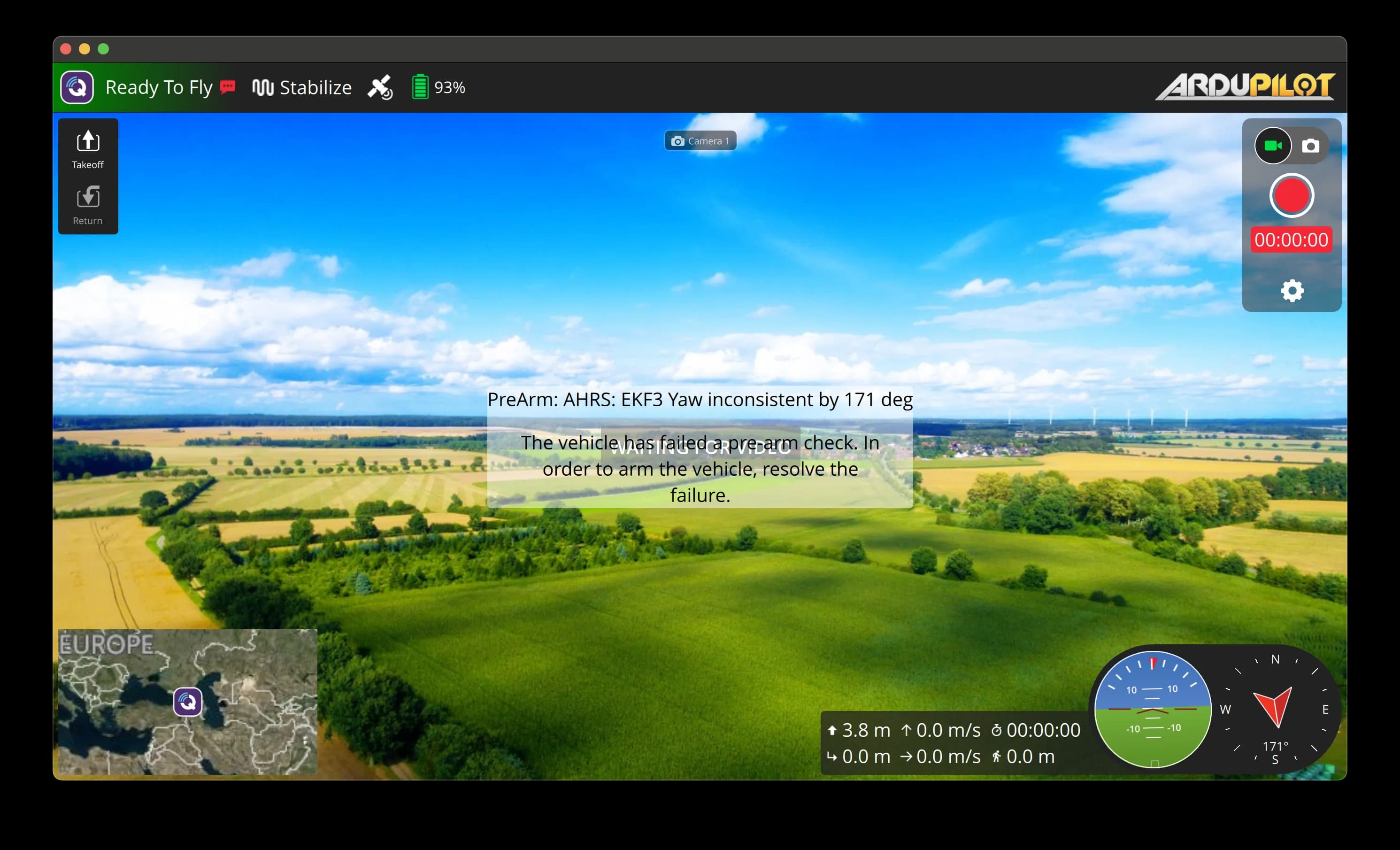
Press Add in the Cameras section to run more than one stream. A wide-angle and a gimbal, or several drones. Give each a Name and set its Source and URL (another WHEP endpoint, or an RTSP camera). The camera button at the top of the flight view cycles between them live.
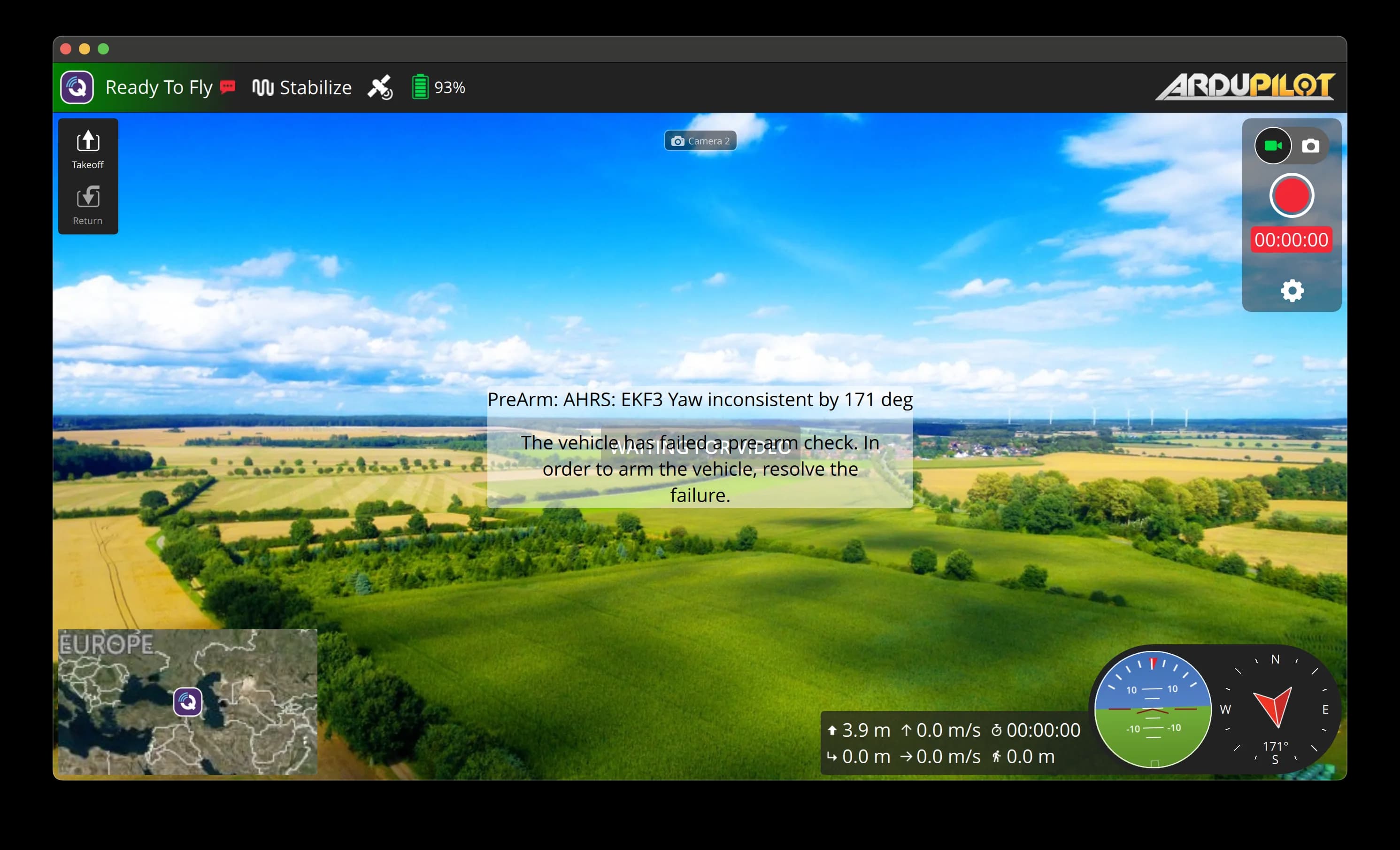
Want them side by side instead of one at a time? Turn on Show all cameras at once (picture-in-picture) in the Cameras section, and every configured stream tiles into the flight view together.
In the air
With the source configured, live video fills the flight view alongside the map, attitude and telemetry, everything in one window over your 4G/LTE link.
Flash your Pi in about 5 minutes
The Aircast Flasher downloads the image, sets Wi-Fi and hostname, and verifies the card.
On This Page