On this page
Aircast Ground Station
The next Aircast ground station, rebuilt as native apps for Windows, macOS, Android and iPhone and iPad, plus a version that runs in the browser. Each app looks and feels at home on its platform, and all of them run the same flight core. It flies everything Aircast QGC flies, with a DJI-style Fly view on top.
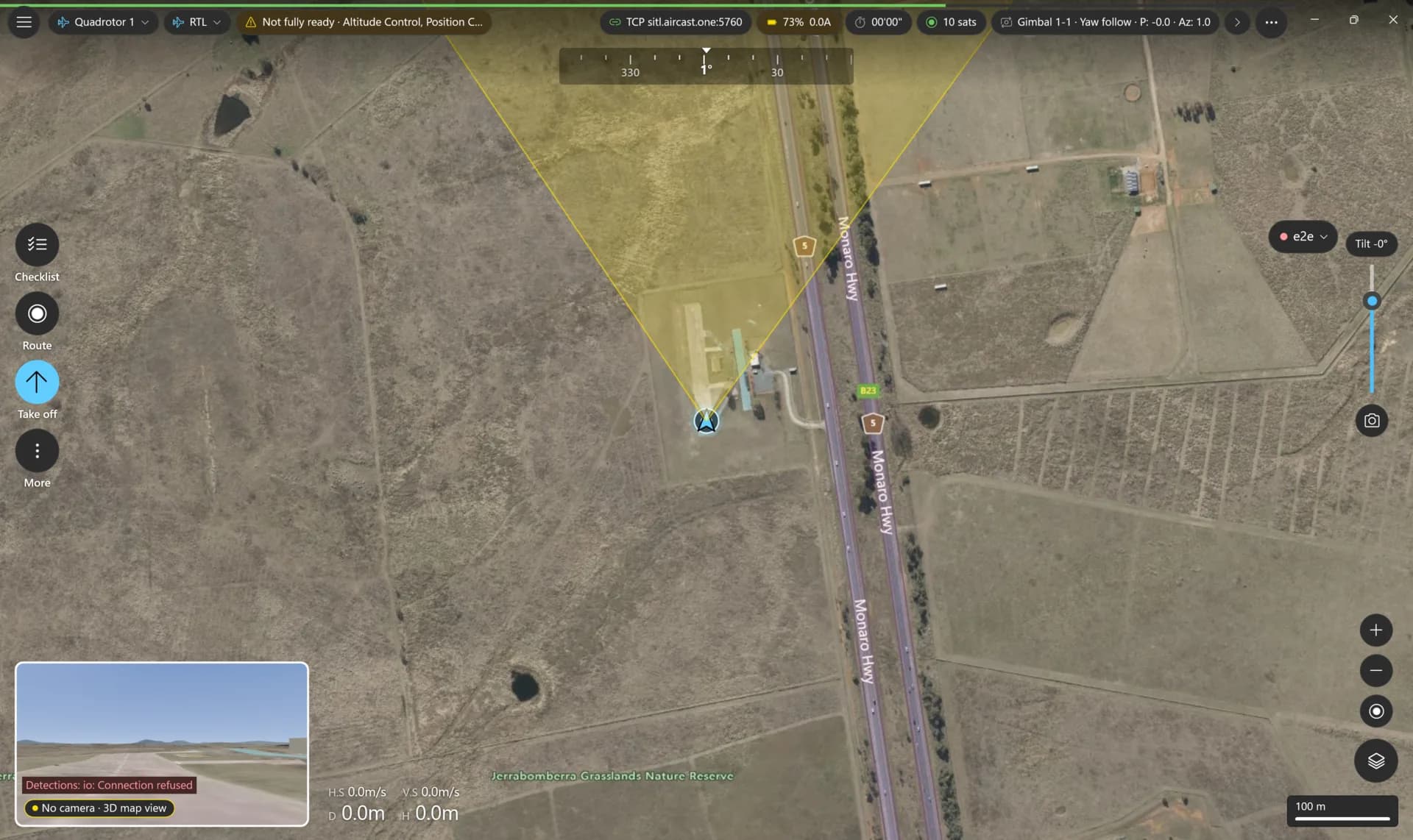
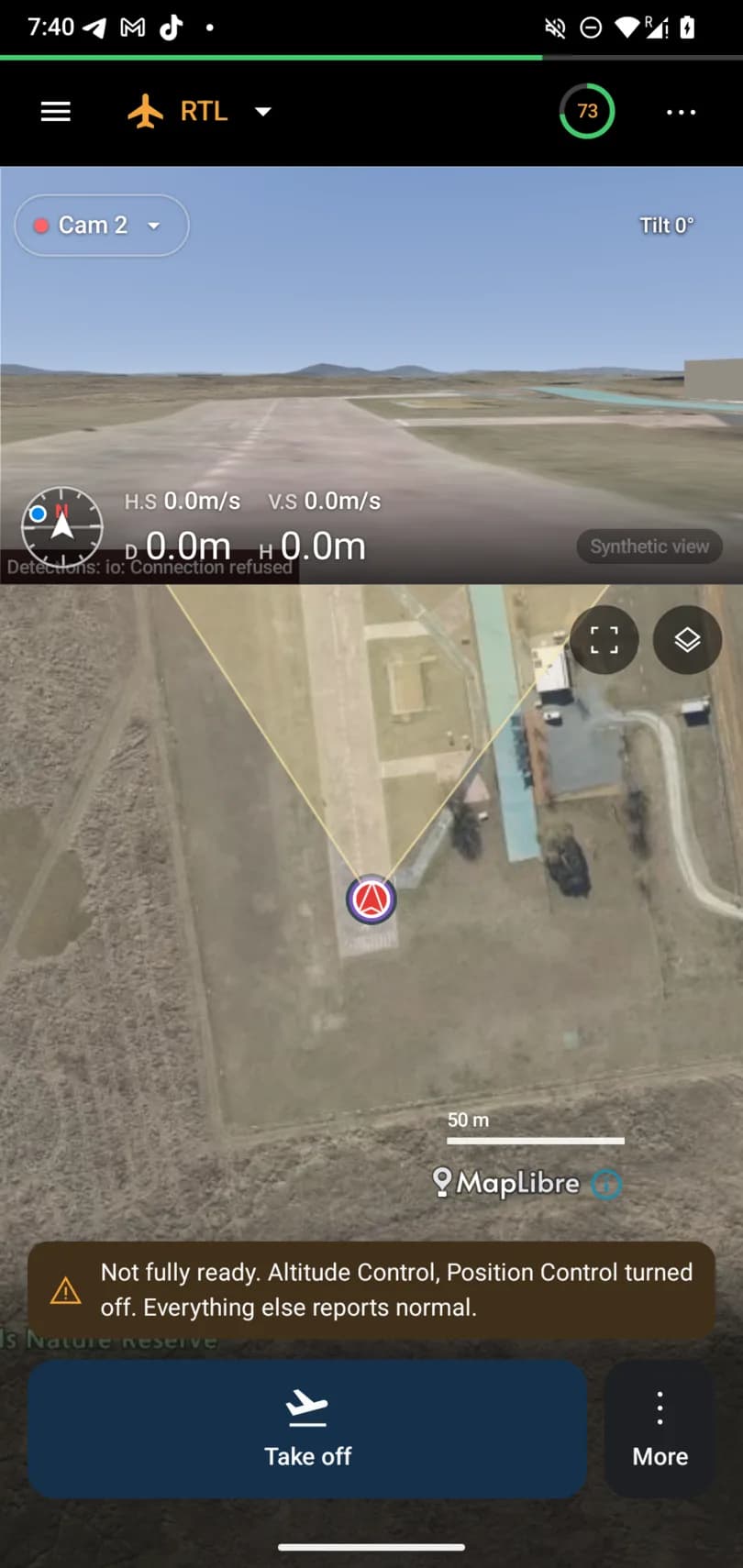
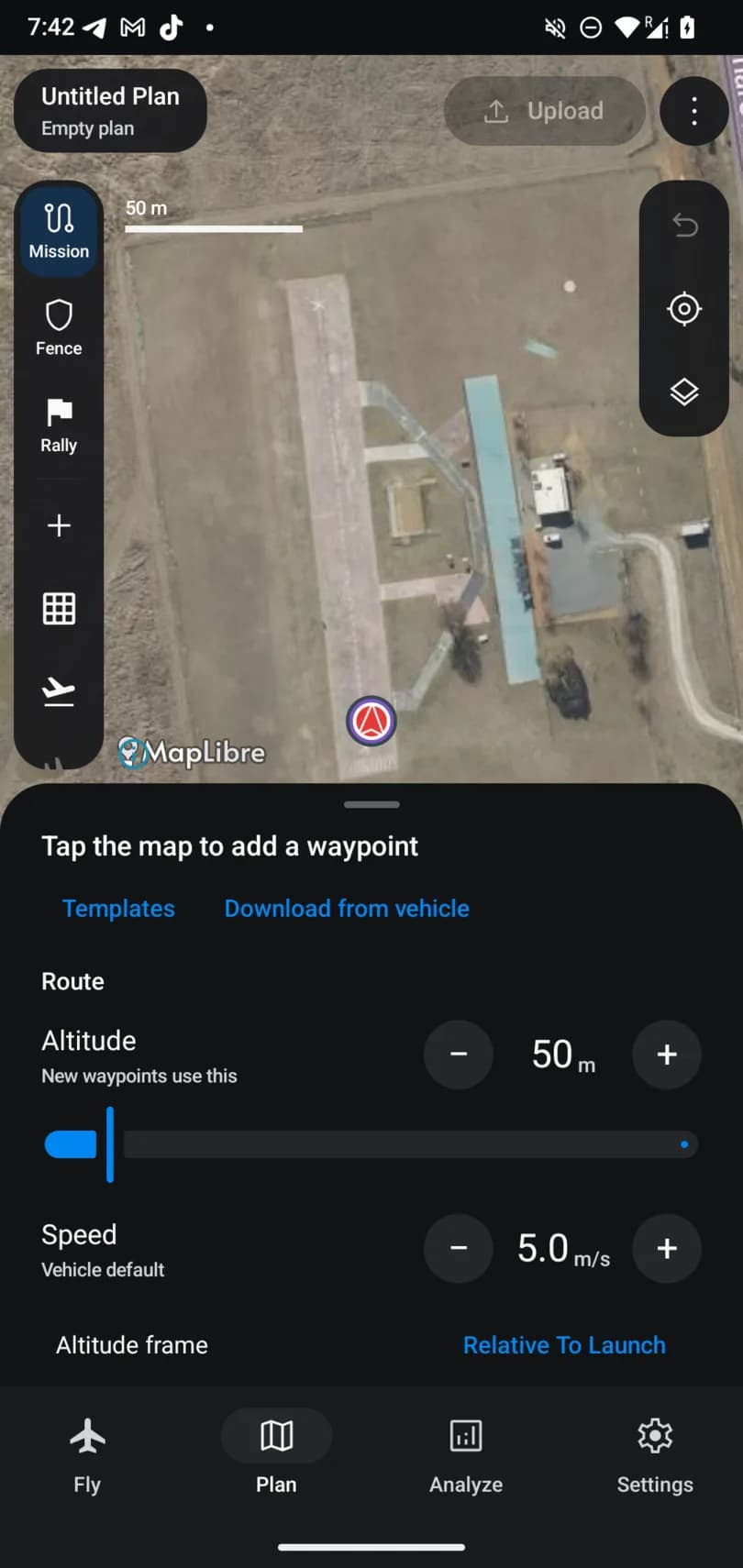
Windows and Android, connected to the same ArduCopter at the same moment. Every screen is the same app drawn the way its platform expects.
Download
Latest beta: v5.6.5-beta.25. Each button downloads the app directly.
Which Windows build? A Snapdragon or Copilot+ PC takes ARM64, an Intel or AMD PC takes x64. Not sure? Open Settings → System → About and read System type.
Install
- Windows: run the
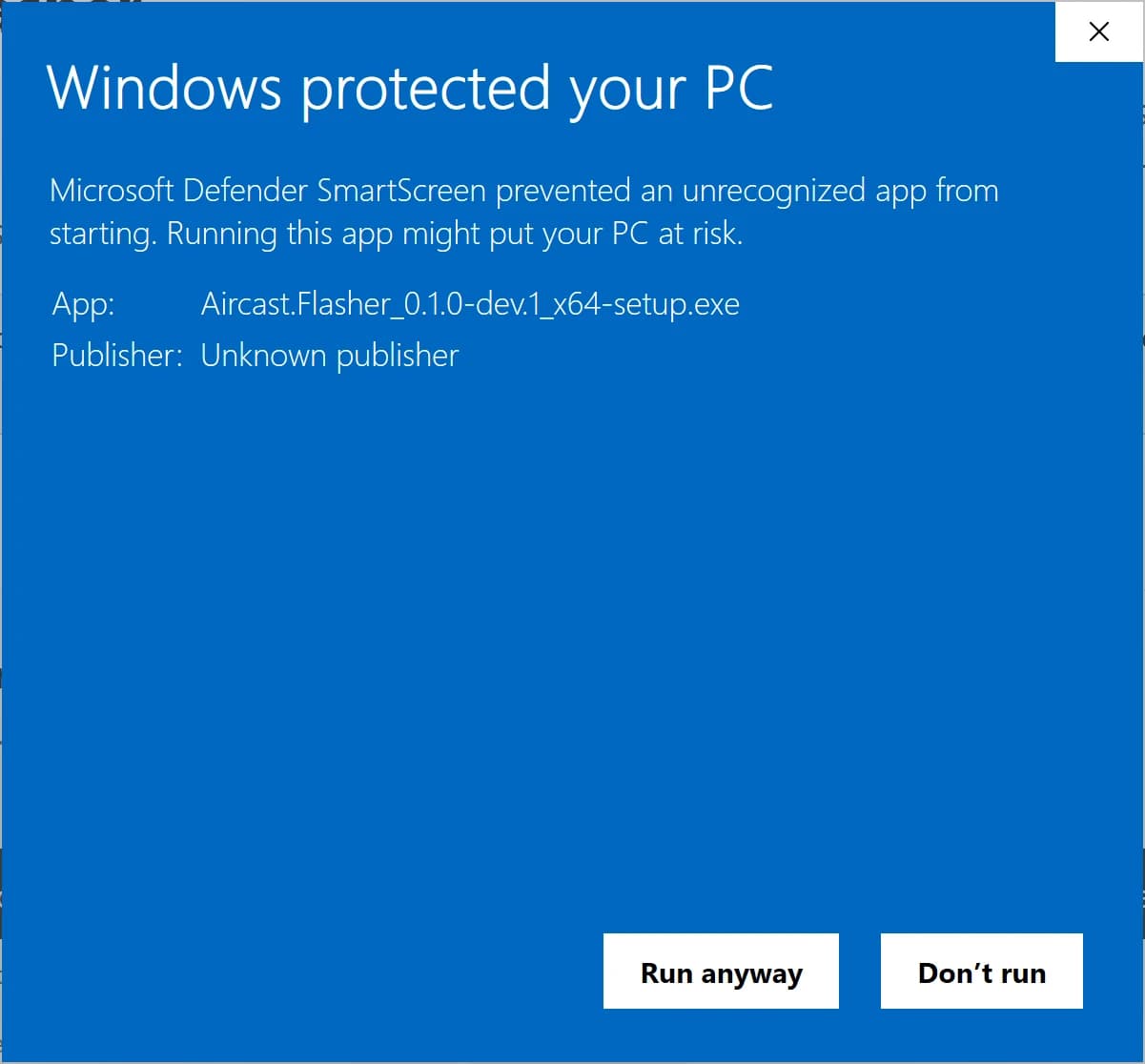
-setup.exe. It installs for your user only, with no administrator prompt, and adds Aircast QGC to the Start menu. The app isn't code-signed yet, so the first time Windows shows Windows protected your PC: click More info, then Run anyway.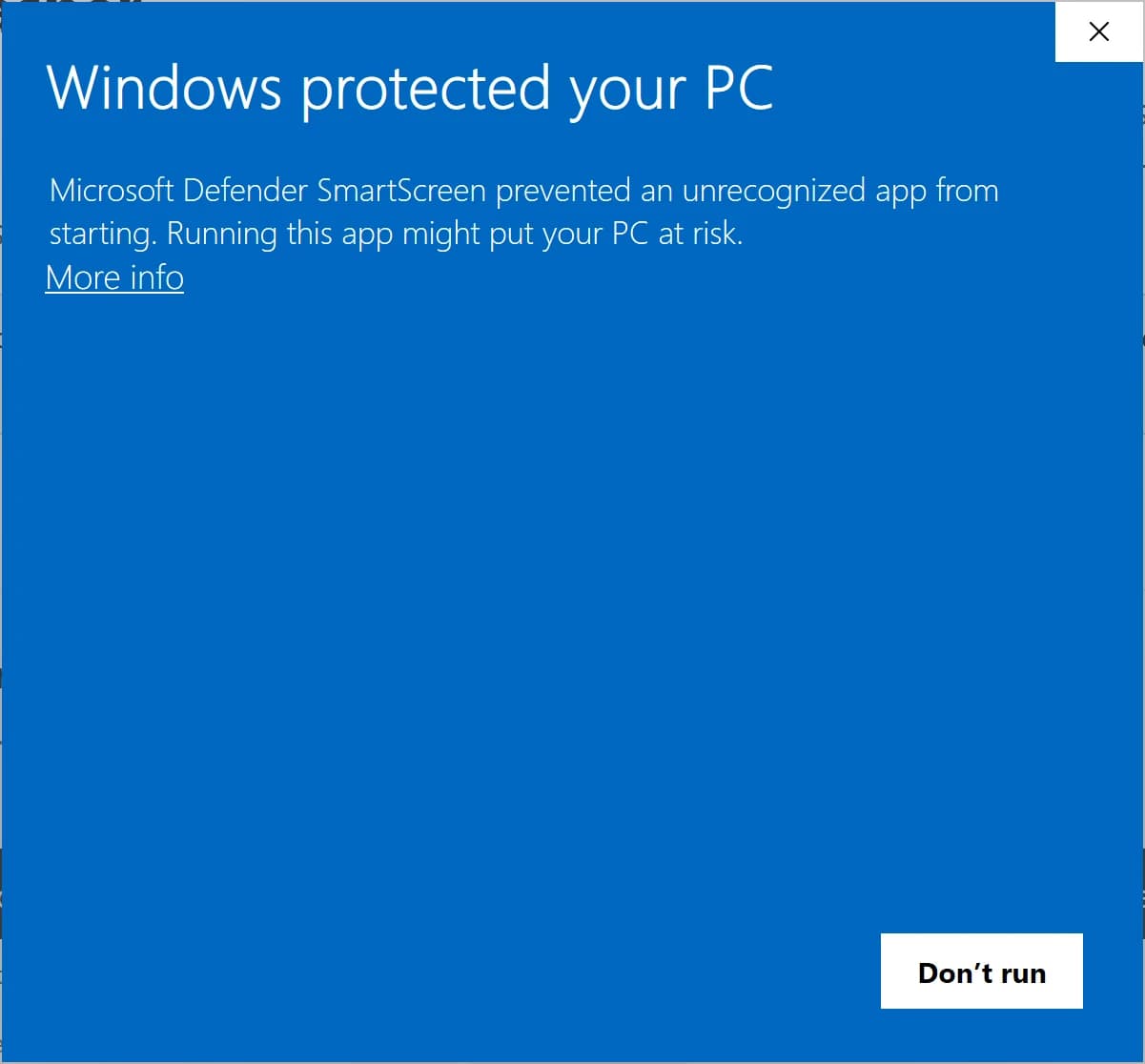
Prefer not to install? Extract the portable zip anywhere and run
AircastQGC.exe; deleting the folder removes it. - macOS: open the
.dmgand drag the app into Applications. If macOS says the app can't be opened, clear the quarantine flag once:Terminalxattr -dr com.apple.quarantine /Applications/AircastQGCNative.app - Android: open the
.apkon the device and allow installing from that source when Android asks. It installs next to Aircast QGC, so you can keep both. Prefer updates through Google Play? Join the closed test. - iPhone and iPad: install TestFlight, then accept the beta invite on the same device. TestFlight keeps you on the newest build.
- Browser: open fly.aircast.one in Chrome or Edge on the same network as your drone, or in its Tailscale network.
What's new
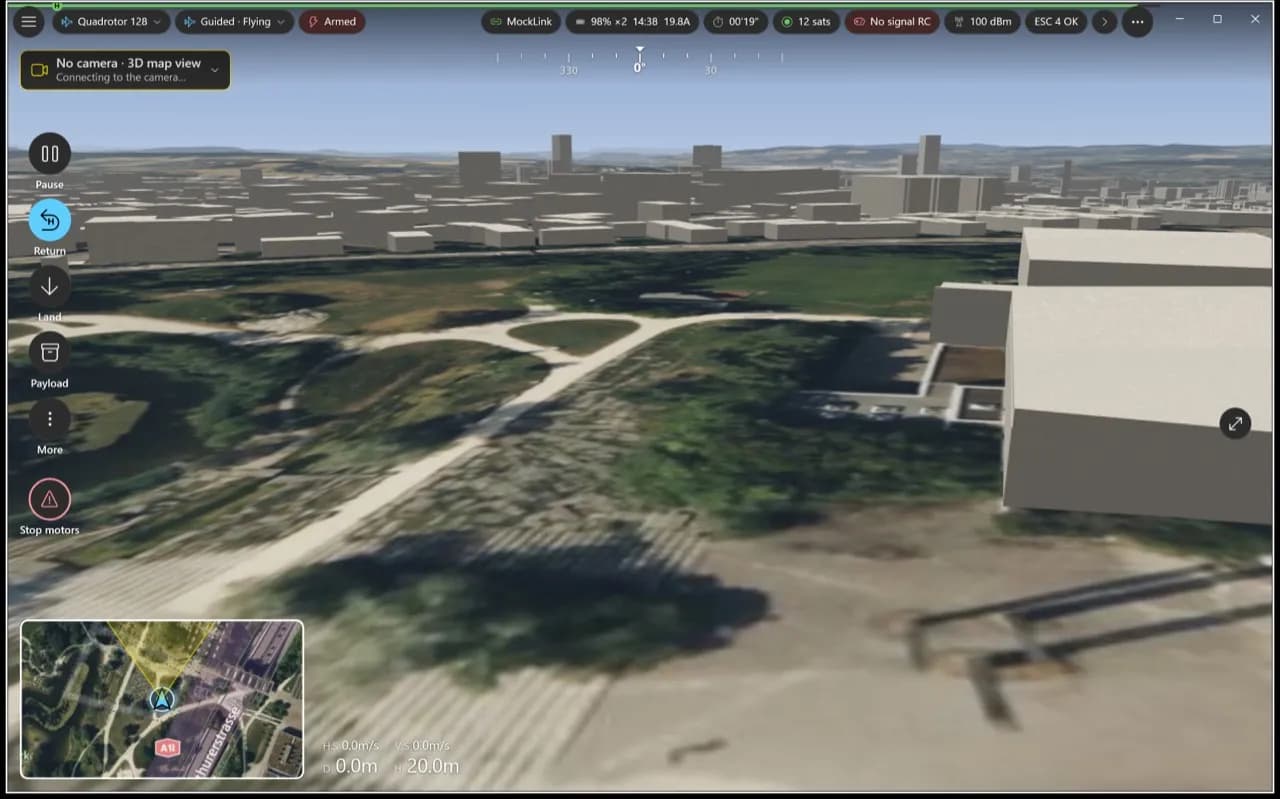
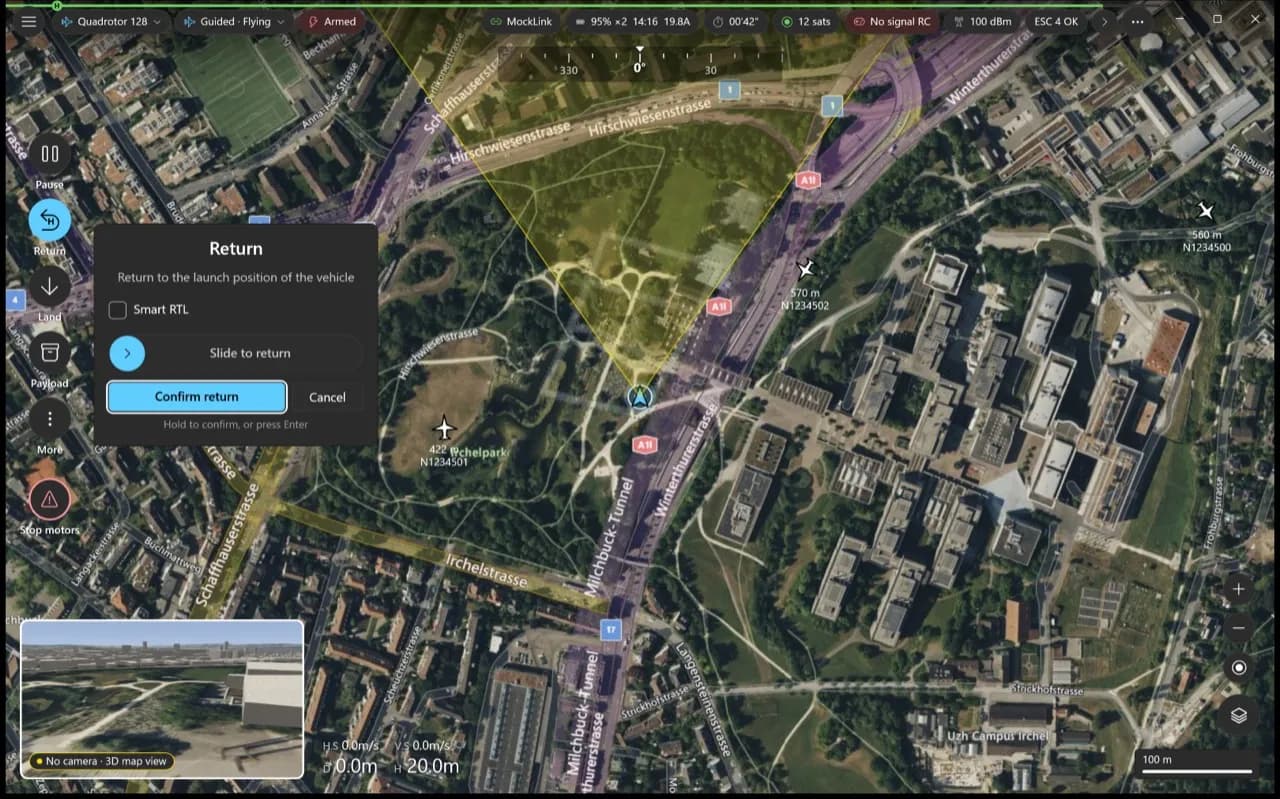
- A Fly view built for flying. Video or map fills the screen, the other sits in a corner, and Take off, Return, Land and Pause sit on a rail at the left, with the drone status along the top.
- Deliberate confirms. Actions that move the drone ask you to confirm with a slide first, so a stray tap or click never flies it.
- 3D view. The map can show the buildings around you in 3D, with your mission route drawn over them.
- Camera and gimbal. Drag or tap on the video to point the camera, or use the tilt slider next to it.
- Device tab. Settings → Device sets up and runs an Aircast drone: cameras, connection, telemetry, the flight log and software updates. Every drone serves this app at its own address with the Device tab already connected; elsewhere, type the drone’s address there. It is in the browser, Android and Windows apps, not yet on macOS or iPhone.
- Aircast card writer. Write Aircast to an SD card for a new drone, with its name and Wi-Fi set, from inside the app. On Windows it asks to restart as administrator when it writes the card.
- Radio over USB. Fly with an EdgeTX radio plugged into the computer or tablet over USB.
- One core everywhere. Every app runs the same flight core, so a feature or a fix lands on Windows, macOS, Android and the web together.
Everything you use in Aircast QGC
- Multiple Aircast video streams, switchable or side by side
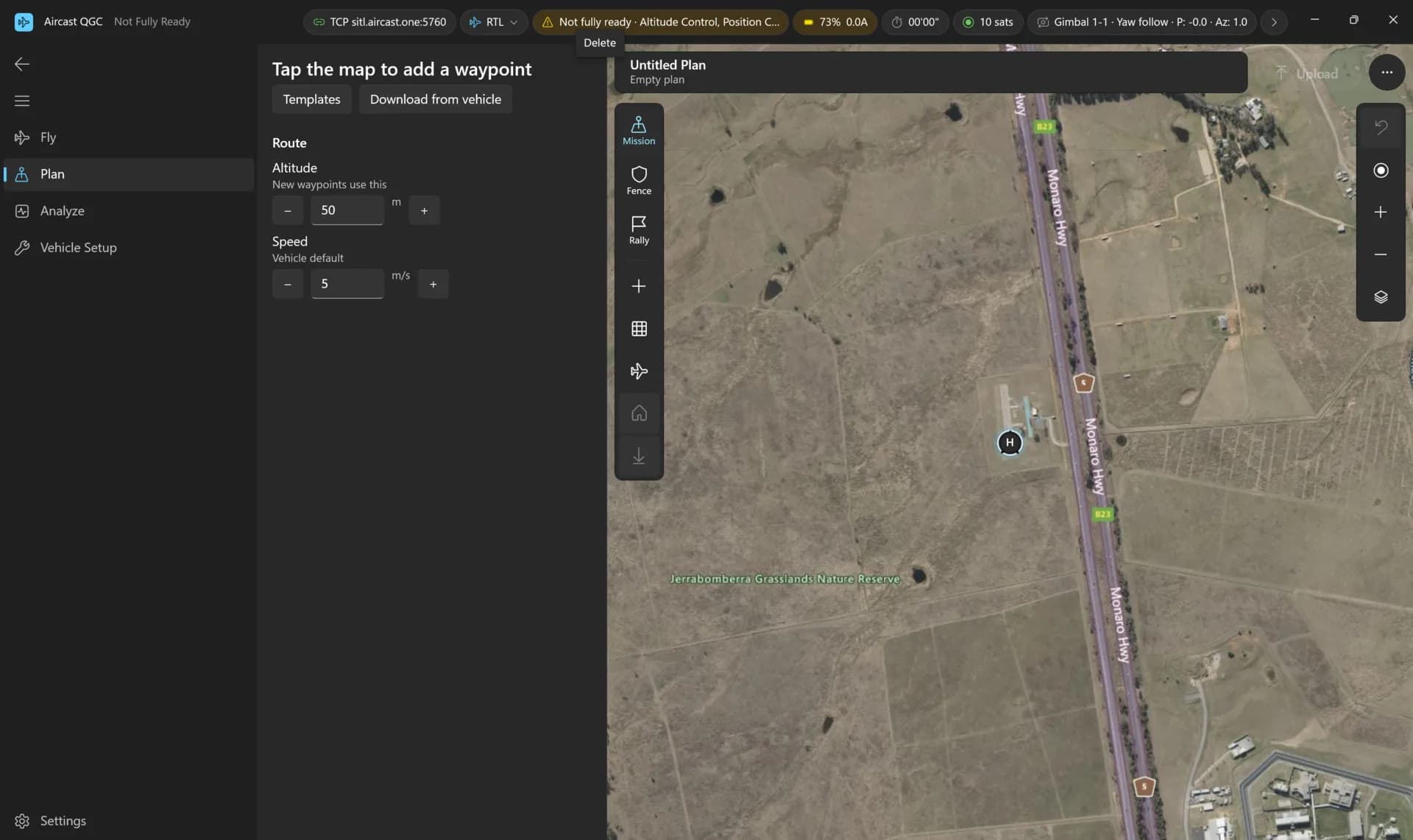
- Waypoint missions and surveys in Plan, and QGroundControl plan files
- Vehicle setup: sensor calibration, flight modes, failsafes and parameters
- Flight log download in Analyze
- ArduPilot and PX4, and several vehicles at once
Flash your card in about 5 minutes
The Aircast Flasher downloads the image, sets Wi-Fi and hostname, and verifies the card.
On This Page